

If your Stripe payout failed, check the failure code and destination details in the Stripe Dashboard before taking action. This guide explains how to investigate the failure and build Make.com Slack alerts with duplicate checks and a clear recovery process. A failed bank payout is not a reason to charge your customers again.
This guide covers the troubleshooting process and a Make.com workflow that sends an actionable Slack alert when Stripe reports a payout failure. The workflow retrieves the payout, suppresses alerts already recorded as delivered, and preserves failed executions for investigation.
The implementation is for one Stripe account’s own payouts. Stripe Connect platforms need additional account scoping and should use the connected-account payout documentation. Examples below are illustrative; the acceptance tests explain how to validate your configuration before enabling live alerts.
Table of Contents
First, identify which Stripe operation failed
Payment collection and payouts happen at different stages of the money flow. Route the incident according to the object that failed.
| What you see | What to investigate | Responsible team |
|---|---|---|
| A customer invoice payment failed | Payment method, authentication, and collection retries | Billing or customer success |
| A payout to your bank failed | Destination account, payout failure reason, and bank restrictions | Finance or treasury |
| A payout is pending or in transit | Expected arrival date and current transfer status | Finance |
| A payout appears paid but is missing from the bank | Payout details and a bank trace where available | Finance and the bank |
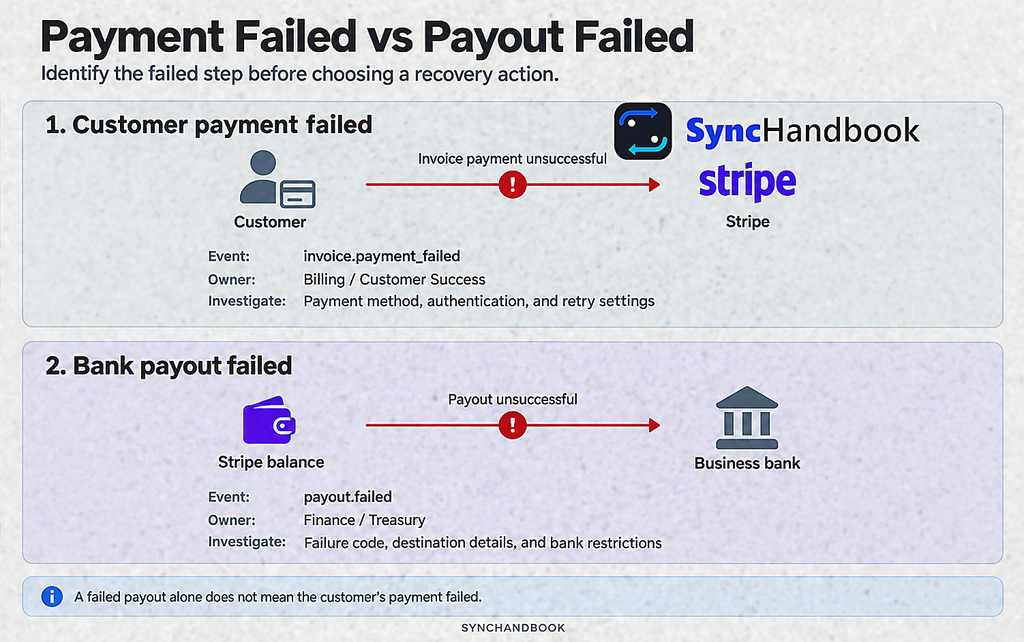
For unsuccessful customer collections, use the separate failed payment recovery workflow. Keep its customer emails and CRM actions separate from this internal payout monitor.
Stripe emits payout.failed for a failed payout attempt. A previous payout.paid event does not make a later failure irrelevant: Stripe documents that a failure notification can arrive afterward. Subscribe to the failure event even if another scenario already processes successful payouts. Stripe event types.
Stripe Payout Failed: Find the Cause Before Taking Action
Open the affected payout in the correct Stripe account and environment. Record the payout ID, amount, currency, destination reference, failure code, and the time your team first noticed the problem.
Read the failure message in Stripe rather than inferring the cause from a missing bank deposit. Distinguish a confirmed failure from a transfer that has not yet reached its expected arrival date.
Stripe says the bank can take up to five additional business days to return a failed payout and notify Stripe. After correcting bank details, Stripe describes retrying at the next scheduled payout interval; other banking issues can require contacting the bank and resuming payouts. These are conditional steps, not a promise that every failure resolves automatically within five days. Stripe payout failure guidance.
Use a short response matrix to assign the next action:
| Failure code | First investigation |
|---|---|
no_account or invalid_account_number | Compare the destination details with information obtained securely from the bank. |
account_closed or account_frozen | Ask the authorized account owner to resolve the destination-account problem. |
invalid_currency | Check whether the destination supports the payout currency. |
insufficient_funds | Inspect the Stripe balance relevant to the payout. |
could_not_process, an unfamiliar code, or no code | Review the original message and escalate without guessing the cause. |
These are triage actions, not authorization to replace banking details automatically. The code definitions and nullable failure fields are documented in the Stripe Payout object reference.
What the Make workflow will do
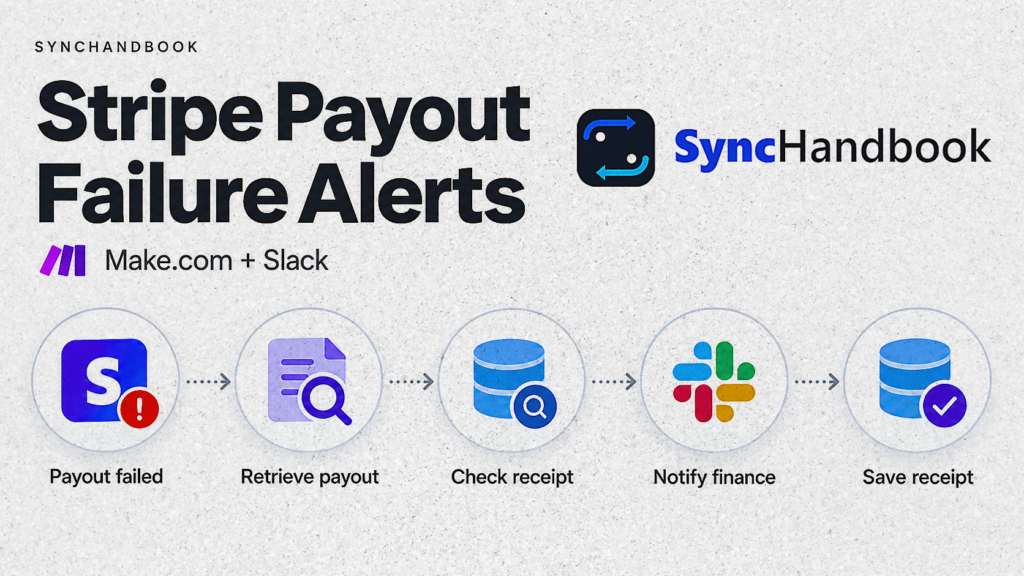
The normal path has six modules:
| 1 | Stripe Watch Events | Receive payout failure events. |
| 2 | Stripe Retrieve a Payout | Read the current payout through your Stripe connection. |
| 3 | Tools Set multiple variables | Create a stable incident key and consistent message fields. |
| 4 | Data store Check the existence of a record | Look for a previously delivered alert. |
| 5 | Slack Create a Message | Notify the designated internal channel. |
| 6 | Data store Add/Replace a Record | Save the delivery receipt after Slack succeeds. |
Filters between these modules reject the wrong environment, irrelevant events, unexpected payout states, and already-recorded alerts. Error handlers preserve failures instead of pretending that the alert succeeded.
This design deliberately stops at notification. A finance operator investigates and records resolution. Keeping payout creation, refunds, and accounting mutations outside the alert path makes replaying a notification much easier to reason about.
Step 1: Prepare the connections and incident destination
Create a dedicated internal Slack channel, such as finance-payout-alerts. Give the finance owner access and add the app or bot used by your Make connection. Use a separate channel for testing so sample failures are recognizable.
In Make, configure a Stripe connection for your test environment first. Keep credentials inside the connection settings. Name the connection to identify the business and environment, for example Primary business Stripe test. Create an equally explicit live connection later.
Confirm which account each connection belongs to. Do not determine the account from a company name supplied inside an incoming payload.
Make provides the native Stripe trigger and payout retrieval modules used here. Its instant trigger setup registers the webhook automatically; avoid adding a second destination for the same scenario by habit. See Make’s Stripe connection and module reference.
In the scenario settings, enable Store incomplete executions and Sequential processing. Restrict this incident-key namespace to this one scenario. Serial execution reduces overlapping processing within this scenario; it is not a distributed lock across separate scenarios or external scripts. Review the current behavior in Make’s scenario settings.
Step 2: Create the delivery-receipt data store
Create a Make data store named stripe_payout_alert_receipts. Each record means that a Slack alert has been delivered and its receipt saved. Do not use this store for provisional or manually investigated incidents.
Use the record key for the incident key. Add these fields:
| Field | Type | Value to save |
|---|---|---|
payout_id | Text | The retrieved payout’s ID |
event_id | Text | The triggering Stripe event ID |
environment | Text | test or live |
failure_code | Text | Retrieved code, or not_provided |
slack_channel | Text | Channel returned by Slack |
slack_ts | Text | Message timestamp returned by Slack |
delivered_at | Date | Time the successful delivery was recorded |
Store the Slack timestamp as text. Treat it as a message identifier rather than a number to round or calculate with.
Separating delivery receipts from incident-resolution records makes the duplicate check unambiguous: a record exists only after confirmed message delivery. Restrict manual editing so a placeholder row cannot accidentally suppress a real alert.
Data stores persist information between scenario runs; the schema above is specific to this workflow. Make data stores.
Step 3: Configure the Stripe failure trigger
Add Stripe Watch Events, create its webhook, and select the payout event group and payout.failed event. Use your test connection during setup.
Capture a genuine test event before mapping downstream fields. A reduced, illustrative event looks like this:
{
  "id": "evt_example_failure",
  "object": "event",
  "livemode": false,
  "type": "payout.failed",
  "data": {
    "object": {
      "id": "po_example_failed",
      "object": "payout"
    }
  }
}These IDs are examples, not retrievable Stripe objects. Use the real IDs captured in your account for an end-to-end test.
After the trigger, add an AND filter requiring the event type to equal payout.failed, the nested object type to equal payout, and livemode to match the scenario environment.
Map using the fields exposed by your captured bundle. The top-level id identifies the event; data.object.id identifies the payout. Mixing them up is a common cause of retrieval errors. Module numbers in Make can differ from the order shown in this guide, so use field tokens rather than pasting assumed module references.
Step 4: Retrieve and validate the payout
Add Stripe Retrieve a Payout. Map the payout ID from the trigger’s nested object, and use the same Stripe connection as the trigger.
The underlying operation retrieves one payout by ID. If you inspect an API request while debugging, its form is:
GET https://api.stripe.com/v1/payouts/{PAYOUT_ID}Replace the placeholder with an actual payout ID. This is the endpoint reference, not a replacement for configuring the native module. Stripe Retrieve a Payout API.
Before continuing, check that the returned ID matches the requested payout, its environment matches the scenario, and its current status is failed. If a value contradicts the trigger, stop before sending the ordinary failure alert and investigate the run history. Do not silently describe an unexpected state as a confirmed failure.
Use the retrieved payout for the alert details. If its failure code is missing, use the explicit label not_provided; do not substitute a likely banking error. A missing code should change the investigation route, not erase the incident.
Step 5: Build a stable incident key
Add Tools Set multiple variables and define an account label, environment, incident key, and failure-code display value.
Construct the incident key from literal text and mapped fields:
{configured_account_id}:{environment}:{payout_id}:failedFor example:
acct_example:test:po_example_failed:failedSet the account component from trusted configuration for this Stripe connection. A fixed internal account label also works if it is unique and never reused for another business.
Use the payout ID because the alert represents a business incident. The event ID remains useful for tracing and replay, but it is not the only identifier relevant to duplicate handling. Stripe warns that webhook deliveries can repeat and that separate event objects can sometimes describe the same underlying occurrence. Stripe webhook duplicate-handling guidance.
Keep the failure code out of the key for this implementation. An absent code becoming available should not automatically generate a second incident. An operator can add updated details to the existing Slack thread.
Step 6: Suppress previously recorded deliveries
Add Data store Check the existence of a record, select the receipt store, and map the incident key.
Place a filter after it that allows execution to continue only when the record does not exist. A matching receipt ends this path without another Slack message. A store read error must remain an error; it is not evidence that the key is absent.
Do not create the receipt before sending the alert. Otherwise, a failed Slack request could leave a record that makes every subsequent delivery look like a duplicate.
This ordering provides a practical compromise: successful, recorded notifications are suppressed, while unrecorded failures remain recoverable. It does not guarantee exactly-once delivery. There is still a gap between Slack accepting a message and Make saving its receipt. The recovery procedure below handles that gap explicitly.
Step 7: Send an alert that someone can act on
Add Slack Create a Message. Select the dedicated channel by its actual channel ID and choose the authorized connection.
Use the following as a text template, replacing each bracketed label with a Make mapping token or a configured value. The brackets are explanatory placeholders, not executable Make syntax.
Stripe payout failure — [environment]

Incident: [incident_key]
Payout: [payout_id]
Stripe event: [event_id]
Amount: [amount] minor units ([currency])
Failure code: [failure_code_display]
Owner: Finance on-call

Next action: Open this payout in the correct Stripe account,
review the failure message, and confirm the destination details.
Record the investigation and resolution in this thread.Keep the raw amount explicitly labeled as minor units. Do not divide every currency by 100: Stripe’s currency rules include zero-decimal currencies and special payout cases. A human-readable amount can be added once you implement currency-specific formatting. Stripe currency rules.
A payout ID and code usually provide enough context for the first alert. Keep bank details, customer records, credentials, and unrestricted raw payloads out of the message. An authorized operator can review the full details in Stripe.
After the module succeeds, inspect its output for the message timestamp and channel. If you replace the native module with direct Slack API calls, also validate Slack’s application-level success response. Slack message API.
Step 8: Save the receipt after Slack succeeds
Connect Data store Add/Replace a Record immediately after the Slack module. Use the incident key and populate every receipt field from the current run, including Slack’s returned message identifiers.
Only this module creates the receipt. Do not put an error-handling route around Slack that resumes with fabricated message identifiers, and do not mark an unsuccessful notification as delivered.
Retain receipts longer than the event-replay period you intend to support. For example, a 90-day retention policy is a reasonable starting design choice for a small internal monitor, provided it fits your data-retention requirements. It is not a Stripe requirement or a compliance certification.
If receipts are deleted, old events can create new alerts when replayed. Document that behavior before adding automated cleanup.
Step 9: Make failed executions recoverable
Attach a Retry error handler to the retrieval, duplicate-check, Slack, and receipt-write modules. For the initial deployment, set Automatically complete execution to No, and confirm Store incomplete executions is enabled. This creates an operator-reviewed recovery path while you establish actual connector behavior. Make Retry error handler.
Assign someone to review incomplete executions and Make’s scenario notifications. An alert workflow that only reports its own failures through the broken Slack connection has a monitoring blind spot.
Use this recovery procedure:
| Failed operation | Recovery action |
|---|---|
| Stripe retrieval or receipt lookup | Fix the connection or service problem, then resume the stored execution. |
| Slack rejects the request clearly | Correct channel access or message configuration, then resume. |
| Slack times out and delivery is uncertain | Search the channel for the exact incident key before retrying. |
| Receipt write fails after Slack succeeded | Resume the failed store write using the saved Slack output; do not restart the whole flow. |
For an ambiguous Slack timeout, pause new runs while investigating. If the message exists, save its receipt manually after confirming the incident key, channel, and timestamp, then discard the stale execution that would send it again. If the message does not exist, resume the failed send. Resume normal scheduling after checking the queue.
Sequential processing can make an unresolved execution affect later processing. That is another reason to give the queue a named owner rather than leaving it unattended. Make incomplete executions.
Step 10: Run acceptance tests before live alerts
Test the behavior, not just whether the scenario displays a green completion indicator.
| Test | Expected result |
|---|---|
| Genuine test payout failure | One Slack message and one complete receipt. |
| Same event delivered again | No additional message after the first receipt exists. |
| Two rapid deliveries of the same event | Serial processing and the receipt check suppress the second completed delivery. |
| Wrong environment or event type | Filter stops processing before the payout alert. |
| Unretrievable payout ID | Stored error; no fabricated financial alert. |
| Missing failure code | Message uses not_provided and still reaches finance. |
| Slack connection cannot post | Incomplete execution exists; no delivery receipt is created. |
| Receipt write fails after posting | Recovery writes the receipt without posting again. |
Use Stripe’s documented payout test bank or card values for your account’s country in a supported test environment. Do not use a declined customer-payment card as proof that you tested a payout failure: those exercise different operations. Test bank details must never replace live banking details. Stripe payout testing reference.
You can test repeat delivery using a real test event and its registered webhook endpoint:
stripe events resend evt_REPLACE_WITH_TEST_EVENT --webhook-endpoint=we_REPLACE_WITH_TEST_ENDPOINTThe CLI defaults to test mode; confirm the selected account before running it. Replace both IDs with values from your test environment. Stripe documents a 30-day event-resend window for this CLI command. Resending an event does not create a new payout. Stripe CLI event resend reference.
Launch, backfill, and close the incident
For launch, configure the live Stripe connection, live environment filter, production Slack channel, and live incident-key namespace. Confirm the destination subscribes to payout.failed, then enable scheduling.
Review Stripe for failures that occurred before the monitor was enabled. They will not become new events merely because you created a scenario. Where a recent event is available for delivery to your configured endpoint, resend it deliberately and verify the receipt. Handle older incidents manually instead of inventing replacement event payloads.
During the first week, compare Stripe’s failure events with Slack messages and receipts daily. Record any difference with the event ID and Make execution ID. Adjust this review frequency after you understand the incident volume and recovery behavior.
The finance owner should close each incident with the cause, corrective action, evidence of the outcome, and any related replacement payout ID. A new payout has its own identity; do not overwrite the failed payout’s history to make it look successful.
For the ledger side of the investigation, continue with the Stripe payout reconciliation guide. This notification workflow does not decide which QuickBooks entry to create or reverse.
Frequently asked questions
Does a failed Stripe payout mean my customer’s payment failed?
The payout event alone does not establish a problem with the original customer payment. Investigate the bank-transfer failure separately. Do not trigger dunning emails or request another customer payment solely because a payout failed.
Why did the payout show paid before it failed?
Stripe can receive a later failure report from the destination bank. Keep failure monitoring active even after processing an earlier paid notification, and use the current payout record when investigating. Stripe payout status reference.
Will this Make scenario fix the bank account automatically?
It will notify the responsible team and keep a delivery receipt. An authorized person must review banking information and the required recovery steps in Stripe. Automated bank-account replacement is outside this workflow.
Can I use one copy for multiple Stripe accounts?
Start with a separate connection and clearly scoped incident keys for each account. A Connect implementation needs connected-account context for event handling and retrieval. Copying this single-account scenario without those changes is insufficient.
Does the data store guarantee no duplicate Slack messages?
It suppresses incidents whose successful delivery has already been recorded. A timeout or failure between Slack acceptance and receipt storage can still leave an uncertain outcome. Searching by the incident key and resuming the failed module provides the recovery path for that case.