

To eliminate manual bookkeeping errors, implementing an automated stripe payout reconciliation workflow between your payment gateway and accounting software is essential. Reconciling payment processor payouts against general ledger software is one of the most persistent operational bottlenecks for subscription businesses.
When Stripe deposits funds into a business bank account, it never transfers the gross customer revenue. Instead, Stripe deposits the net amount subtracting transaction processing fees, dispute holds, and platform fees while rolling multiple individual customer charges into a single lump-sum payout.
When accounting teams attempt to reconcile these transactions manually, they encounter recurring friction:
- Bank feeds detect a lump-sum deposit (e.g., $14,620.50) that matches no single invoice in QuickBooks Online.
- Payment processing fees are either neglected or manually estimated via journal entries at month-end.
- Refunds and chargebacks create negative balance variances that break standard invoice matching rules.
This technical runbook details how to architect an enterprise-grade Stripe Payout and Merchant Fee Reconciliation Engine using Make.com and the QuickBooks Online API.
Table of Contents
Technical Architecture & Financial Data Contract
| Layer | Component / Standard | Operational Function |
|---|---|---|
| Trigger Source | Stripe Webhook (payout.paid) | Event-driven initiation upon bank transfer |
| Transaction Fetch | Stripe Balance Transactions API | Pagination & itemization of charges and fees |
| Ledger Engine | QuickBooks Online API (v3/company/deposit) | Creation of multi-split Bank Deposit objects |
| Clearing Account | Stripe Clearing / Holding (Current Asset) | Zero-balance transit ledger |
| Expense Ledger | Stripe Merchant Processing Fees (Expense) | Accurate recognition of COGS / transaction fees |
| Auditing Layer | Slack Webhook / Shared Accounting Channel | Balance verification receipt with deep link |
Architectural Flow Diagram
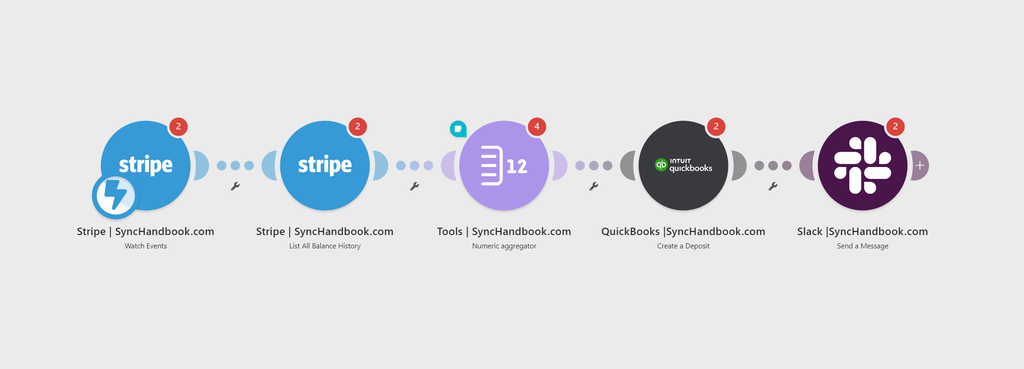
[Stripe Webhook: payout.paid]
             │
             ▼
[Stripe: List Balance Transactions for Payout ID]
             │
             ▼
[Numeric Aggregator: Sum Gross Charges & Net Fees]
             │
             ▼
[QuickBooks Online: Get Current Bank Account IDs]
             │
             ▼
[QuickBooks Online: Create Multi-Split Bank Deposit]
     ├── Line Item 1: Gross Sales (Transferred from Stripe Clearing)
     └── Line Item 2: Stripe Processing Fees (Negative value to Expense Account)
             │
             ▼
[Slack: Dispatch Financial Audit Receipt to #finance]
Why Automated Stripe Payout Reconciliation Matters
Prerequisites & General Ledger Configuration
Before provisioning this scenario, ensure your QuickBooks Online Chart of Accounts (COA) is configured with the following structure:
- Stripe Holding Account: An account of type
Current Assets(orBank) namedStripe Clearing. All individual sales receipts or paid invoices must deposit into this clearing account initially. - Merchant Fees Account: An account of type
ExpensenamedPayment Processing Fees. - Checking Account: Your operating business bank account where physical wire transfers land.
- Make.com Connection: An authenticated QuickBooks Online connection with read/write access to Chart of Accounts and Banking Deposits.
Inbound Ingestion Contract (Stripe Payout Payload)
The workflow triggers on the payout.paid event:
{
  "id": "po_1P9X2kLkdIOPv",
  "object": "payout",
  "amount": 1462050,
  "currency": "usd",
  "arrival_date": 1726041600,
  "status": "paid",
  "type": "bank_account",
  "balance_transaction": "txn_1P9X2mLkdIOPv"
}Note: Stripe represents currency values in cents. An
amountof1462050corresponds to$14,620.50 USD.
Step 1: Ingest the Payout Event
- Create a scenario in Make and add the Stripe > Watch Events module (or a Custom Webhook configured for your Stripe account).
- Set the monitored event to:
payout.paid - Add a filter directly after the trigger:
- Condition:
1.data.object.statusequalspaid - Condition:
1.data.object.typeequalsbank_account
- Condition:
This prevents premature execution if an internal transfer or failed payout status is reported.
Step 2: Retrieve Itemized Balance Transactions
To accurately book the split deposit, we must extract every charge, fee, and refund associated with this specific payout.
- Add a Stripe > List Balance Transactions module.
- In the module parameters:
- Payout: Map the payout identifier:
{{1.data.object.id}} - Limit: Set to
100(or implement auto-pagination for high-volume enterprise stores).
- Payout: Map the payout identifier:
- The response returns an array of transaction records containing
amount,fee, andnet.
Step 3: Aggregate Gross Revenue and Processor Fees
QuickBooks Online requires a single Deposit object containing aggregated lines rather than hundreds of individual journal entries.
- Add a Tools > Numeric Aggregator module.
- Source Module: Select the Stripe Balance Transactions iterator.
- Aggregate Function:
SUM - Target 1 (Gross Charges):
sum(2.amount) / 100 - Target 2 (Merchant Fees):
sum(2.fee) / 100
This normalizes the Stripe integer values (cents) into decimal currency representations required by financial ledgers.
Step 4: Construct the QuickBooks Online Multi-Split Deposit
This step reconciles the bank feed instantly. By creating a deposit that explicitly accounts for fees, QuickBooks Online will automatically suggest a 1-click match when the real bank transaction appears in your banking feed.
- Add a QuickBooks Online > Create a Deposit module.
- Bank Account: Select your physical operational checking account.
- Transaction Date: Map
formatDate(1.data.object.arrival_date; "YYYY-MM-DD") - Deposit Line Items (Splits):
Split Line 1: Gross Clearing Offset
- Account:
Stripe Clearing - Amount:
{{3.gross_charges_sum}} - Description:
Stripe Payout {{1.data.object.id}} - Gross Revenue Sweep
Split Line 2: Processing Fee Deduction
- Account:
Payment Processing Fees - Amount:
-abs({{3.merchant_fees_sum}})(Must be entered as a negative number) - Description:
Stripe Processing Fees for Payout {{1.data.object.id}}
Reconciliation Balance Rule:
The calculated total on the deposit object matches the physical cash deposited into your bank account to the exact cent, while clearing the asset transit account and recording the expense.
Step 5: Post-Reconciliation Slack Dispatch
- Add a Slack > Create a Message module.
- Direct the message to your internal finance channel (
#accounting-ops). - Payload layout:
✅ STRIPE PAYOUT RECONCILED IN QUICKBOOKS

Payout ID: {{1.data.object.id}}

Bank Wire Amount: ${{1.data.object.amount / 100}} USD

Gross Volume Cleared: ${{3.gross_charges_sum}}

Stripe Fees Booked: ${{3.merchant_fees_sum}}

QuickBooks Deposit ID: {{4.id}}

🎯 Status: Bank feed auto-match ready.Edge Cases & Financial Safeguards
| Variance Scenario | Financial Impact | Technical Mitigation |
| Dispute / Chargeback Hold | Net payout is reduced unexpectedly | Filter balance transactions for type adjustment. Route disputes into a dedicated Accounts Receivable Disputes holding account. |
| Currency Conversion Spreads | Stripe charges in EUR, pays out in USD | Pull exchange_rate from the Stripe Balance Transaction and book the difference into an Unrealized FX Gain/Loss expense line. |
| Cross-Month Payout Straddle | Charges occur on Sept 30, payout lands Oct 2 | Rely on the arrival_date timestamp for deposit booking to maintain strict cash-basis bank feed alignment. |
Production Verification Checklist
Before running this workflow against live general ledger books:
- [ ] Verify that the
Stripe Clearingaccount balance returns to zero after the deposit is booked. - [ ] Confirm processing fees are passed as a negative value (
-abs()) to decrease the deposit total properly. - [ ] Cross-reference the resulting QuickBooks Deposit total against your online banking transaction download.
- [ ] Ensure Stripe test webhooks are replaced with live production webhook secrets.
Expanding Your Automated Financial Stack
Building resilient financial pipelines prevents costly audit delays and month-end friction. To continue modernizing your revenue operations:
- If you generate manual quotes and invoices, see our guide on auto-creating QuickBooks invoices from HubSpot deals.
- For automated post-sale onboarding after contracts settle, explore our runbook on B2B workspace provisioning using Make.
- To ensure qualified inbound accounts reach your account executives without delay, review our lead enrichment and round-robin routing engine.