

Google Sheets removing leading zeros during a Make import usually means an identifier has been interpreted as a number somewhere in the workflow. An account code such as 000742 arrives as 742, a postal code loses its first character, or a long external ID no longer matches the original record.
The durable fix is to preserve identifiers as text from the source, write them without automatic interpretation, and verify the stored value after the write. Changing the visible number format alone does not establish that the original identifier survived.
This guide covers Make scenarios that write CRM, billing, onboarding, or order data into Google Sheets. You will build a small test import, choose the correct input mode, inspect the result, and repair affected records without guessing missing digits.
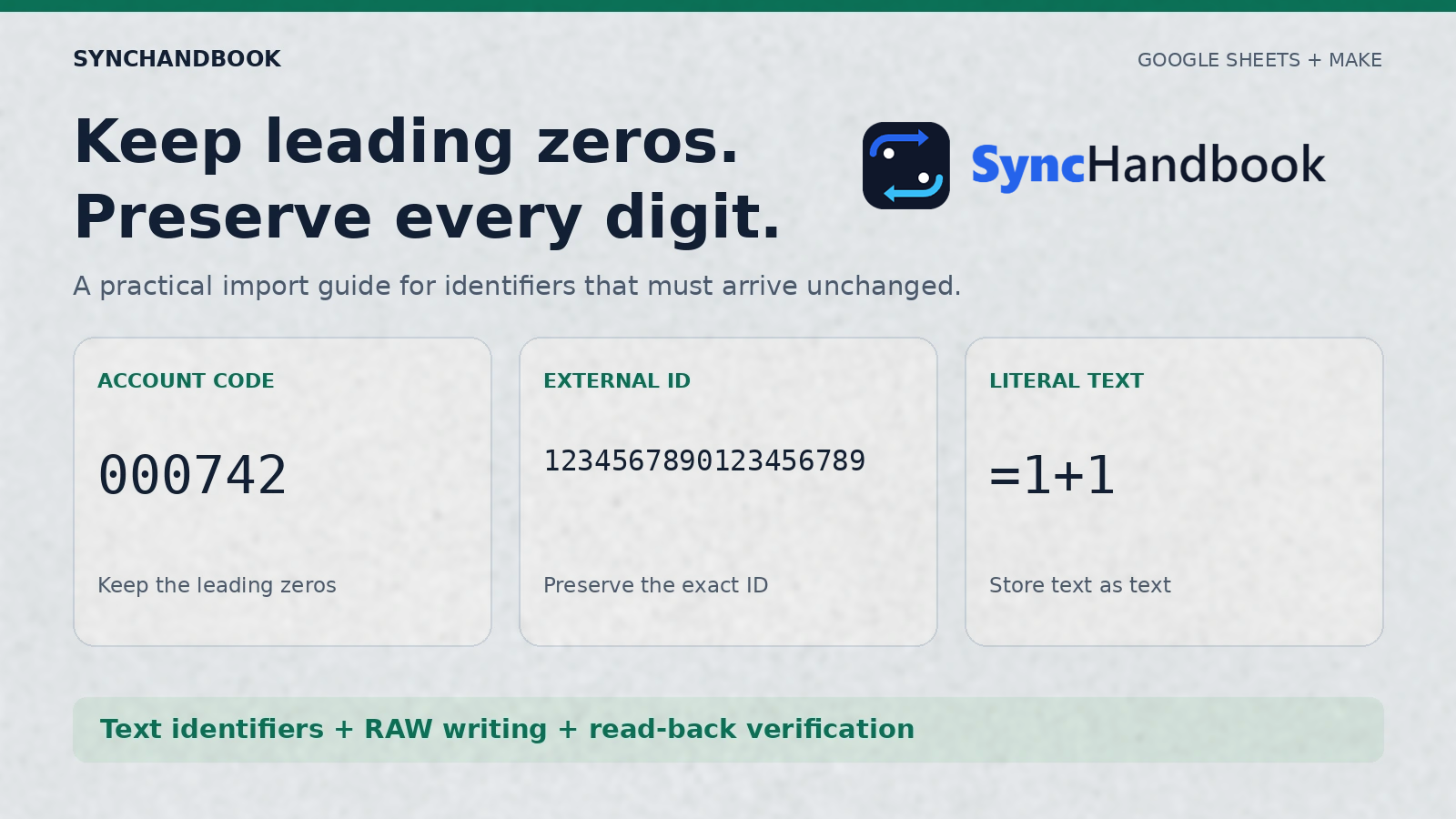
Keep identifiers as text throughout the import. Use numeric fields for quantities and amounts that require arithmetic.
The quick fix
If the source still contains the correct value:
- Confirm that the identifier reaches Make as a text value.
- Remove numeric conversions from that field’s mapping.
- In the Google Sheets writing module, set Value input option to Raw.
- Write one record to an isolated test sheet.
- Read it back using Unformatted value and compare the complete value and its type with the source.
Google distinguishes RAW, which stores supplied values without interpreting their contents, from USER_ENTERED, which applies the interpretation used when typing into the Sheets interface. Importantly, RAW preserves the supplied type: a JSON number does not become a string just because you selected RAW. Google Sheets input options.
If Make already receives 742 instead of 000742, changing the Sheets setting cannot recover the missing zeros. Start at the source or the earlier transformation that changed the value.
Jump to your problem:
- Find where the value changed
- Build the native Make import
- Use an explicitly typed API request
- Verify the stored value
- Keep amounts, dates, and formulas working
- Repair existing records
- Run the acceptance tests
First, identify which problem you actually have
Three different failures can look like a formatting issue. They require different fixes.
| Symptom | What to inspect | Correct direction |
|---|---|---|
000742 appears as 742 | Source value, mapped value, and stored type | Preserve the identifier as a string before writing |
A long value appears with E+ notation | Stored value as well as displayed formatting | Determine whether only the display changed or precision was lost |
| Final digits no longer match the source | Original text before any numeric conversion | Restore from an authoritative source |
02108 looks correct but exports as 2108 | Custom formatting and the downstream read mode | Separate display padding from actual stored text |
| A date-like code changes into a date | Input interpretation and destination cell | Write the code as literal text |
| An amount can no longer be summed | Whether it was sent as a string | Keep the amount numeric while preserving IDs as text |
Take one affected record and inspect it at four checkpoints: the original system, the first Make bundle, the input to the Sheets module, and a read of the destination cell.
The first checkpoint where the value differs tells you where to investigate. If the original webhook is correct but a later bundle is not, changing spreadsheet formatting addresses the wrong part of the process.
Avoid testing with a real customer record whose update could trigger invoices, messages, or provisioning. A disposable sheet and synthetic record make the result much easier to interpret.
Scientific notation does not always mean data loss
A cell can display a numeric value in scientific notation without that display alone proving corruption. Conversely, expanding the column or changing its format cannot restore digits that were lost when the value became a number.
The Sheets API represents a numeric cell value using a double, while text has a separate string representation. Long digit sequences used as identifiers should therefore remain strings rather than depend on numeric precision. Google Sheets value types.
For an ID, the practical question is exact identity: does the returned string match the source character for character? Whether the cell looks like an ordinary number is secondary.
Define the field contract before touching the scenario
An identifier answers “which record?” An amount answers “how much?” Those are different jobs even when both fields contain digits.
Use this synthetic record for the walkthrough. Every value is illustrative.
Code language: JSON. This is a source record, not a Make blueprint.
{
  "source_record_id": "rec_demo_001",
  "account_code": "000742",
  "external_id": "1234567890123456789",
  "postal_code": "02108",
  "phone": "+12025550123",
  "amount": 1299.5,
  "source_date": "2026-09-15",
  "note": "=1+1"
}
The account code, external ID, postal code, and phone are quoted strings. The amount is a JSON number. The date is intentionally preserved as source text. The note is a harmless test of whether literal text gets interpreted as a formula.
| Field | Type for this import | Reason |
|---|---|---|
source_record_id | Text | Stable reference for reconciliation |
account_code | Text | Leading zeros belong to the code |
external_id | Text | Every digit must survive |
postal_code | Text | Not a quantity; this example contains a leading zero |
phone | Text | Preserve the supplied plus sign and digits |
amount | Number | Intended for calculations |
source_date | Text | Preserve the supplied date representation |
note | Text | Imported content must remain literal |
Do not add an all-digits validation rule to every identifier. Many systems use letters, hyphens, prefixes, or case-sensitive strings. Validation should follow the source field’s documented contract.
Likewise, a phone number being stored correctly does not mean it is a valid or reachable number. Data preservation and business validation are separate checks.
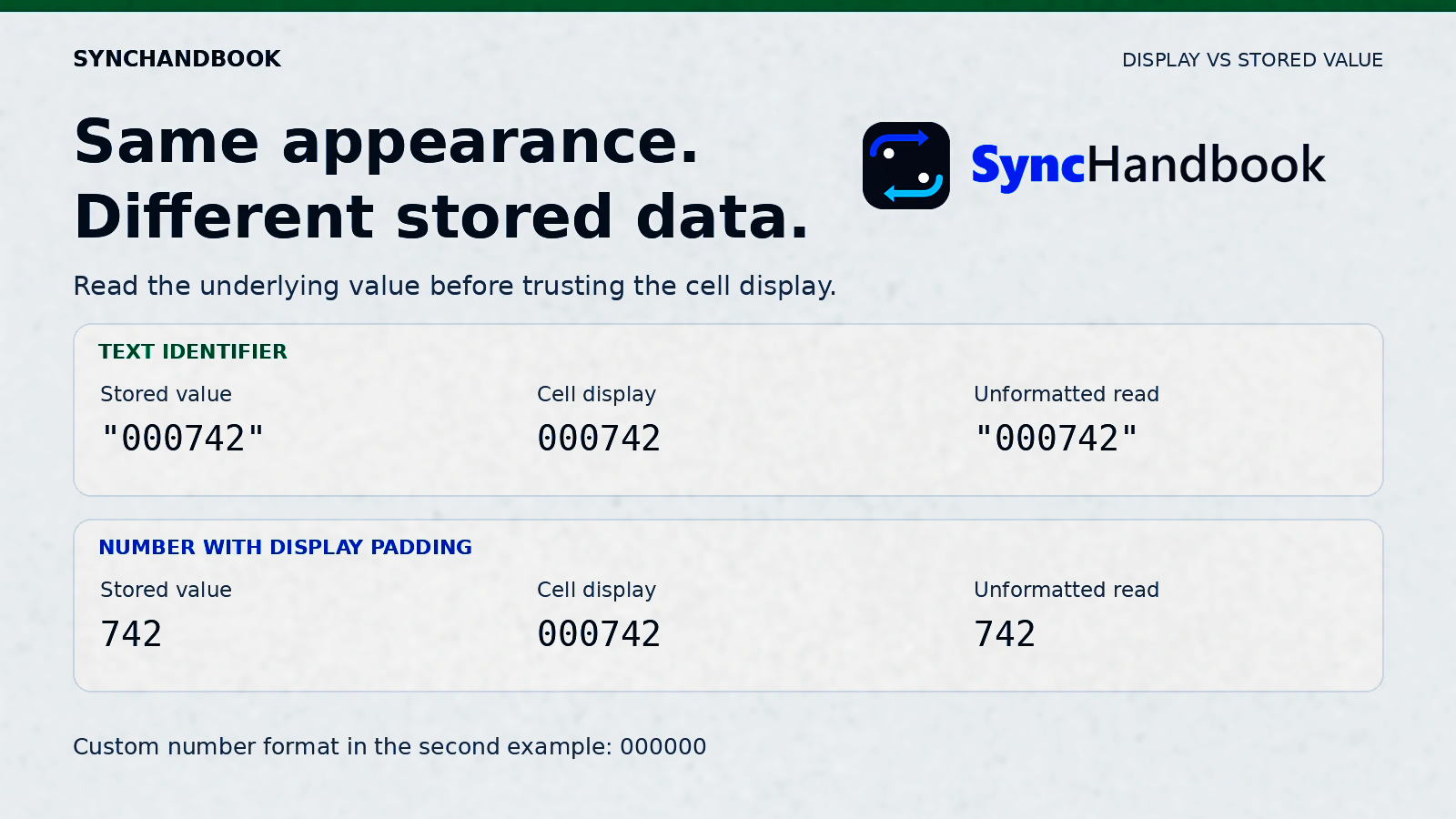
A six-digit display pattern can make the number 742 look like 000742. It does not make the stored number an exact text identifier.
Step 1: Build a small native Make import
Create a spreadsheet tab named RawImport. Put the eight field names from the table in cells A1 through H1, in the same order. Leave the first test destination row empty.
Use a sheet that has no downstream automation attached. Keep the scenario paused while configuring it. You need a Google connection with editing access to this spreadsheet; the exact identity connected in Make matters more than which account currently has the sheet open in your browser.
For the first test, use Google Sheets > Add a Row. Select the test spreadsheet and RawImport, indicate that the table contains headers, and map the corresponding source value into each column.
Find Value input option and choose Raw. Make documents this option for Add a Row, Update a Row, and other writing modules. If your module also exposes an Unformatted setting, do not assume it replaces Value input option. Make’s Google Sheets module reference.
Map the identifiers directly. Remove arithmetic, numeric parsing, or rounding operations applied to these fields. If the incoming schema declares an identifier as a number, fix that schema or the source serialization before considering the spreadsheet repaired.
Run one synthetic record. Inspect the writing module’s actual input and the destination row. Do not judge the test only by the module turning green.
Do not convert an already damaged number back to text
Turning 742 into the text "742" does not reconstruct "000742". Similarly, converting a rounded long number to text only freezes the rounded result.
If the producer can send the ID as text, change it there. If it cannot, find an API field or export mode that supplies the original textual identifier. Do not invent a zero count from the current appearance of other rows.
Test creation and updates separately
An Add a Row test can pass while a later Update a Row module uses a different input mode. Check every writer touching the identifier columns, including repair scenarios and bulk imports.
Also identify writers outside Make. A manual paste, another integration, or a reporting script may be responsible for a value changing after your original import succeeded. Record when each checkpoint was observed so later edits do not get mistaken for the original write.
Step 2: Use an explicit API request when you need to control types
The native module is the simpler starting point. Use the API approach when you need to inspect the exact JSON values being sent or reproduce an ambiguous mapping issue.
In Make, add Google Sheets > Make an API Call using the authorized Google connection. Make’s URL field is relative to https://sheets.googleapis.com/v4/, and the module supplies authorization. Do not paste a service-account key or access token into the article’s example.
Configure the following:
| Setting | Value |
|---|---|
| Method | PUT |
| URL | /spreadsheets/SPREADSHEET_ID/values/RawImport!A2:H2 |
| Header | Content-Type: application/json |
Query: valueInputOption | RAW |
Query: includeValuesInResponse | true |
Query: responseValueRenderOption | UNFORMATTED_VALUE |
Replace SPREADSHEET_ID with the ID from the spreadsheet URL. Keep the tab name exactly RawImport for this test. These are module settings, not a shell command.
Code language: JSON. Paste this into the API request body.
{
  "majorDimension": "ROWS",
  "values": [
    [
      "rec_demo_001",
      "000742",
      "1234567890123456789",
      "02108",
      "+12025550123",
      1299.5,
      "2026-09-15",
      "=1+1"
    ]
  ]
}
This writes to a fixed test range. Running it again overwrites A2:H2. It is not a general new-row import or a deduplication mechanism.
The update endpoint accepts a range and a value input option, and can return the written values for inspection. Google: values.update.
The values resource supports strings, numbers, and booleans. In this example the quotes are meaningful: "000742" is a string, while 1299.5 is numeric. For this API, null skips an input value and an empty string can be used to set an empty value; define that policy before using the request for updates. Google: ValueRange.
When replacing the static example with mapped content, use a JSON builder with explicit field types. Avoid assembling a body by concatenating unescaped customer text. A name or note containing quotation marks can otherwise break the request even when the ID handling is correct.
If your production workflow needs appends, use the appropriate native action or the documented append endpoint. Append locates a table and adds values after it; its behavior differs from writing a fixed range. A retry can append another row, so preserve your existing duplicate-control design. Google: values.append.
Step 3: Verify the stored value, not just its appearance
Read RawImport!A2:H2 back using Get Range Values or a second API call. For the API method, use:
| Setting | Value |
|---|---|
| Method | GET |
| URL | /spreadsheets/SPREADSHEET_ID/values/RawImport!A2:H2 |
Query: valueRenderOption | UNFORMATTED_VALUE |
| Body | None |
The read endpoint returns a ValueRange. Its default output is formatted, so request unformatted values explicitly when investigating stored numeric versus textual data. Google: values.get.
For the sample request, the identifier fields should return as strings with every original character intact, and the amount should return as a number. Check both conditions. A comparison that silently converts both sides to numbers can make a damaged ID look equal.
Use these assertions for the first row:
| Cell | Expected result |
|---|---|
| A2 | Text rec_demo_001 |
| B2 | Text 000742, length 6 |
| C2 | Text 1234567890123456789, length 19 |
| D2 | Text 02108, length 5 |
| E2 | Text +12025550123, including the plus sign |
| F2 | Numeric value 1299.5 |
| G2 | Text 2026-09-15 |
| H2 | Literal text =1+1, not the calculated number 2 |
For an additional manual check, enter the following formulas in unused cells on the test sheet. Commas are shown as argument separators; your spreadsheet locale may require semicolons.
Code language: Google Sheets formula. Enter each line in a separate cell.
=AND(ISTEXT(B2),EXACT(B2,"000742"),LEN(B2)=6)
=AND(ISTEXT(C2),EXACT(C2,"1234567890123456789"),LEN(C2)=19)
=AND(ISNUMBER(F2),F2=1299.5)
=AND(ISTEXT(H2),EXACT(H2,"=1+1"))Each should return TRUE for the sample import. They are acceptance checks for these specific values, not reusable validation rules for every customer.
Formatted output can make a stored number look padded, while unformatted output exposes the underlying result. Formula output has another purpose: inspecting expressions rather than their calculated results. Choose the render mode for the question you are investigating. Google Sheets render options.
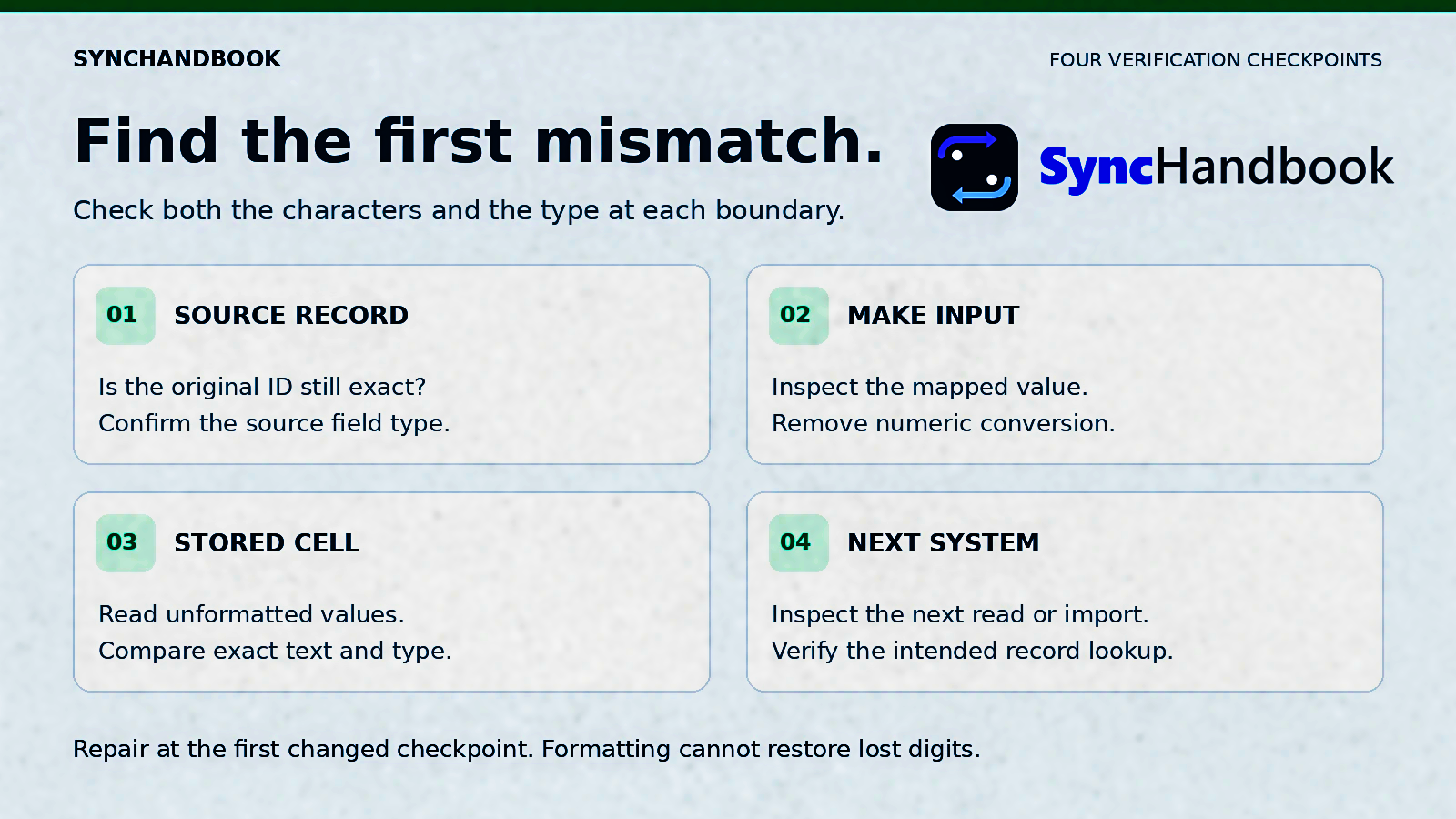
The import passes only when the expected characters and types survive the complete path that consumes the data.
Keep amounts, dates, and formulas working
Selecting RAW does not require turning every field into text. In the explicit JSON example, the amount remains numeric while the identifiers remain strings.
This distinction matters because a spreadsheet that preserves IDs but breaks totals is still an unsuccessful integration.
Amounts and quantities
Send amounts intended for calculation as actual numeric values under a documented source convention. Do not rely on Sheets to guess whether 1,299.50 or 1.299,50 represents the intended amount.
If your source supplies formatted amount strings, normalize them in a separate, explicit transformation using the known source locale. Validate that transformation independently. Do not apply it to every digit-containing field in the record.
For CRM and billing handoffs, keep external IDs unchanged even when amount handling differs. The same principle applies when connecting the sheet to a HubSpot-to-QuickBooks invoice workflow.
Dates
The sample date is deliberately stored as text. That preserves its representation but does not make it a spreadsheet date suitable for all date calculations.
If the reporting sheet needs real dates, keep an untouched source column and derive a separate typed date under an explicit format and timezone policy where relevant. Do not treat a code such as 03-04 as a date merely because it resembles one.
A useful boundary is to separate the imported data tab from a reporting tab. The first preserves the incoming contract; the second contains deliberate calculations and presentation.
Formulas and imported text
RAW writing is appropriate for a note that happens to begin with =. A formula that your workflow intentionally creates needs a separate, controlled formula-writing path.
Do not switch an entire customer-data request to USER_ENTERED simply because one reporting column needs a formula. A values batch update also specifies one input option for that request. If different ranges require different interpretation, split the writes or use a deliberately typed alternative. Google: values.batchUpdate.
Keeping imported text literal in this sheet also does not guarantee how another spreadsheet application will interpret a later CSV import. Check the next consumer separately.
Why common fixes sometimes disappoint
Custom number formats
A pattern such as 000000 can display the number 742 as 000742. That is useful when the requirement is presentation, but it does not prove that six characters were preserved from the source. Google documents these patterns as display formatting. Google Sheets number formats.
Use this approach only when a fixed-width display is the actual requirement. For an identifier that leaves the spreadsheet, verify what the export or API reader receives.
Plain-text formatting applied after import
Setting a column to plain text can be useful preparation for manual entry and paste workflows. Applied after information has been discarded, it cannot establish what the original value was.
For an automation, preserve the source type and control the write. Then test the stored result. Do not rely on a column’s visible formatting label as the complete contract.
Adding an apostrophe to every value
An apostrophe is sometimes used during manual entry to indicate text. It is not a universal transport convention. If you prepend one and then send the result as literal data, you may introduce an extra character into the identifier.
The examples here send ordinary JSON strings without a prefixed apostrophe. If an existing integration already adds one, include that behavior in your read-back checks before changing anything.
Reopening a CSV to check it
CSV does not preserve spreadsheet cell types. An importing application can interpret digit sequences again, so a reopened file can look different even when the text file contained the expected characters.
Inspect the exported file as text first, then check the receiving application’s import settings. Quotation marks used for CSV field syntax are not a universal instruction to store that field as text.
Repair records without guessing missing digits
First stop the writer that is causing new damage. Make a recoverable copy of the affected sheet and preserve the original values for comparison.
Next identify an authoritative recovery source: the CRM’s textual ID field, the original request payload, a verified export, or a previous version known to contain the exact value.
Do not match a damaged row back to its source using only the damaged identifier. Use a separate stable record reference. In the sample, source_record_id exists for this purpose. If no reliable match exists, send the record for review rather than assigning a plausible-looking ID.
Create a repair ledger containing:
- Stable source record reference.
- Observed damaged value.
- Verified replacement value.
- Evidence source and retrieval time.
- Target row resolved at repair time.
- Repair result and verification result.
Restore one row, read it back, and test the downstream lookup that previously failed. Expand the repair only when that path succeeds. Re-resolve rows if users can sort or insert rows while you work; a saved row number is a location, not an identity.
If a source contract explicitly defines six-character numeric codes, padding a shorter value may be a valid domain-specific reconstruction. Record that rule. It does not justify padding unrelated IDs or attempting to recreate rounded digits in a long identifier.
The same separation of valid input from uncertain input appears in our Airtable select-option validation guide: values that cannot be justified should remain reviewable rather than being silently coerced.
Acceptance tests before you restore the live import
Use a fresh test row for each case. Keep the expected values as text in your test fixture so the fixture itself does not lose information.
| Test case | Input example | Passing condition |
|---|---|---|
| Leading zeros | "000742" | Same six-character string |
| Long external ID | "1234567890123456789" | Same 19-character string |
| Postal code | "02108" | Same five-character string |
| Phone | "+12025550123" | Plus sign and digits unchanged |
| Alphanumeric ID | "AC-000742" | Case and punctuation unchanged |
| Numeric amount | 1299.5 | Numeric cell; calculations work |
| Formula-like note | "=1+1" | Literal text, not 2 |
| Date-like identifier | "03-04" | Literal text when the field is an ID |
| Missing required ID | Missing or empty | Follows an explicit rejection/review rule |
| Update an existing row | Same preserved ID | Update does not change its type or characters |
| Next-system read | Previously imported row | Consumer receives the expected ID |
One green execution cannot establish that every writer and reader is correct. Test the normal import, the update path, and whichever export or API read feeds the next system.
For an ongoing check, track the number of missing IDs, exact-value mismatches, and failed downstream lookups. Avoid logging complete customer records when a record reference and failure reason are sufficient.
If the spreadsheet feeds lead enrichment and routing, the most useful final check is that the intended CRM record is found and updated. A neatly formatted spreadsheet is only one checkpoint.
Frequently asked questions
Why is Google Sheets removing leading zeros even though Make shows the right value?
Inspect the input mode on the writing module and the actual type sent to Sheets. A value that appears correct in a preview can still be interpreted during writing. Compare the source, the module input, and an unformatted read of the stored cell.
Does RAW convert all values to text?
No. Preserve identifiers as strings before the write. Supply quantities and amounts as numeric values when they need to remain numeric. The explicit JSON request in this guide demonstrates both in one row.
Will formatting recover the last digits of a long ID?
Only a display problem can be solved with display formatting. If a numeric conversion already changed the digits, recover the exact identifier from an authoritative source. Showing more decimal places cannot reconstruct missing information.
Should I change every Google Sheets module to RAW?
Review what each writer is responsible for. Literal imports and intentional formula or date entry have different requirements. Change the affected data path deliberately and test its consumers rather than making a blanket setting change.
Why does my export lose zeros when the sheet looks correct?
The cell may contain a number with display padding, or the application opening the export may reinterpret it. Check the stored type, the exported text, and the import settings separately.
Is this a duplicate-row solution?
No. It preserves field values. Correct appending, record matching, concurrent updates, and retry handling still require their own design. The fixed-range API request is intentionally limited to a reproducible test row.
What is the final proof that the fix worked?
The exact identifier must survive the source-to-Sheets write and the next read that uses it. Check both its characters and its type, then verify the business action that depends on that ID.
Verification scope
Official Google and Make documentation was reviewed on September 15, 2026. The JSON examples were checked locally for valid syntax and intended value types. The diagrams are explanatory illustrations, not screenshots of a tested Make scenario.
This guide was not executed against a live Make account or Google spreadsheet during preparation. The acceptance tests describe what to verify in your own connection. Actual module serialization, existing cell configuration, permissions, and downstream import behavior remain part of that verification.