

An Airtable 422 error with INVALID_MULTIPLE_CHOICE_OPTIONS means your automation is trying to write a select option that Airtable does not recognize. In Make, this often happens when an incoming CRM status differs from the labels configured in the destination field.
The immediate fix is to send an existing option exactly as configured. For a lasting fix, translate approved source values into destination labels and send unknown values to a review queue before they reach Airtable.
This guide builds that validation step for an existing record update. It also explains Smart links, the API’s typecast parameter, multiple-select arrays, and how to recover a failed update without overwriting newer information. The configuration examples are illustrative; use the acceptance tests to validate your own connections before production.
Table of contents
- What this Airtable 422 error actually means
- Before you start: isolate one record and one field
- Step 1: confirm the destination field and approved options
- Step 2: prove that a known option can be written
- Step 3: preserve the raw value and normalize a copy
- Step 4: translate the normalized value into an approved label
- Step 5: route unknown values into a review queue
- Step 6: map only the approved value into Airtable
- Step 7: recover failures without replaying stale updates
- Step 8: run acceptance tests before restoring the live path
- Should you enable Smart links or typecast instead?
- What changes for a multiple-select field?
- Frequently asked questions
What this Airtable 422 error actually means
Read the error type inside the failed Make module, not just the HTTP status. A 422 response can describe different validation problems. This article addresses INVALID_MULTIPLE_CHOICE_OPTIONS, including messages about insufficient permission to create a select option. Other error types need their own diagnosis. Airtable API troubleshooting.
Imagine an Airtable field called Lifecycle stage with these options:
NewQualifiedCustomer
Your source sends closed won. Your business may treat that as a customer, but the integration still needs an explicit translation. Reconnecting the account does not define that relationship.
The word MULTIPLE in the error name can be misleading: this issue can affect single-select fields too. Confirm the actual destination field type before changing the payload.
| Symptom | First check |
|---|---|
| A fixed option works, but a mapped value fails | Compare the actual module input with the configured option. |
| Only one incoming status fails | Check whether that status has an approved mapping. |
| The label exists in another table | Inspect the specific destination field, not a similarly named field. |
| The failure started after a field change | Confirm the current field, choices, and saved Make mapping. |
| Every write fails, including a known option | Investigate the connection and editing permissions separately. |
Before you start: isolate one record and one field
Use a test base or a disposable record whose updates cannot trigger real onboarding, emails, or billing actions. Pause the affected production path while reproducing the issue.
Keep the first test narrow: one existing Airtable record, one select field, and one known option. Remove unrelated fields from the test update. This prevents a second invalid field from obscuring the result.
The example assumes your upstream integration already supplies:
| Input | Meaning |
|---|---|
record_id | A known Airtable record ID resolved by your integration. |
source_event_id | A stable identifier for the source change, used for review tracking. |
raw_status | The source’s status as text, or an empty value. |
Use the source’s change ID where available. Otherwise, define a stable identifier from its object ID and version or modification timestamp. An Airtable record ID alone cannot distinguish successive changes to that record.
Do not accept an arbitrary record ID from a public form as authority to modify that record. Keep your existing identity and access checks before this validation step.
Step 1: confirm the destination field and approved options
In Airtable, open the destination base and table, then inspect Lifecycle stage. Confirm that it is a single-select field and record its exact option labels. Field configuration is distinct from entering a value into a record. Airtable single-select fields.
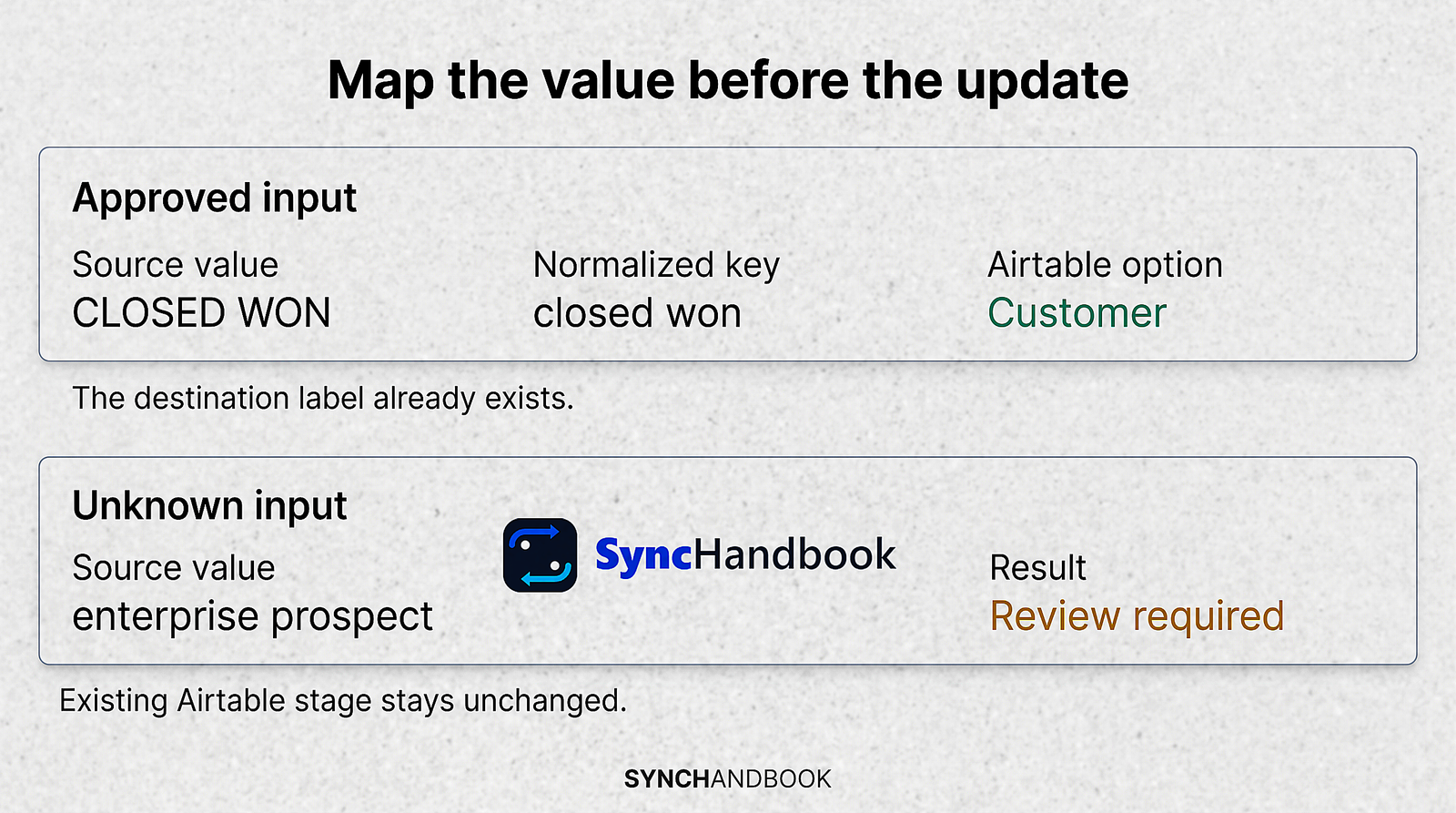
Ask the owner of the business process to approve the translations. Use this example only if its meanings fit your workflow:
| Source value after normalization | Destination option |
|---|---|
new | New |
new lead | New |
qualified | Qualified |
sales qualified | Qualified |
customer | Customer |
closed won | Customer |
| Anything else, including blank | Hold for review; do not update. |
This is a business mapping, not a universal CRM standard. For example, an organization might require a signed contract before assigning Customer, even after a sales opportunity closes.
Choose one system as the authority for this field. If staff edit Lifecycle stage manually while a source system also owns it, agree on an override policy before enabling writes.
Step 2: prove that a known option can be written
Open Airtable > Update a Record in your test scenario. Select the intended connection, base, and table. Choose the disposable record and select the existing Qualified option directly for Lifecycle stage.
Set Smart links to No for this controlled-choice workflow. Run the test and inspect both the module output and the record in Airtable. Make documents Update a Record and its configuration in the Airtable module reference.
If this fixed-value test succeeds, keep the connection unchanged while investigating the mapped input. If it fails, resolve the reported connection, field, or permission problem before building the translation layer.
Make supports Airtable OAuth and personal access tokens. If using a token, check its access to the selected base and the scopes needed by your modules. Make’s documented connection setup commonly uses data.records:read, data.records:write, and schema.bases:read. Store credentials in the connection, never in a mapped status field. Airtable connection setup.
Step 3: preserve the raw value and normalize a copy
Add Tools > Set variable before the Airtable write. Name the variable normalized_status.
Build this expression in Make’s mapping editor:
lower(trim(ifempty(RAW_STATUS_TOKEN; "")))RAW_STATUS_TOKEN is an explanatory placeholder. Replace it with the actual status token from your upstream module. This is a Make expression, not JavaScript or an Airtable formula.
For this text-input contract, ifempty supplies an empty string when the value is missing; trim removes surrounding spaces; lower produces a consistent lookup key. The original source token remains available for the review log. Make text functions, Make general functions.
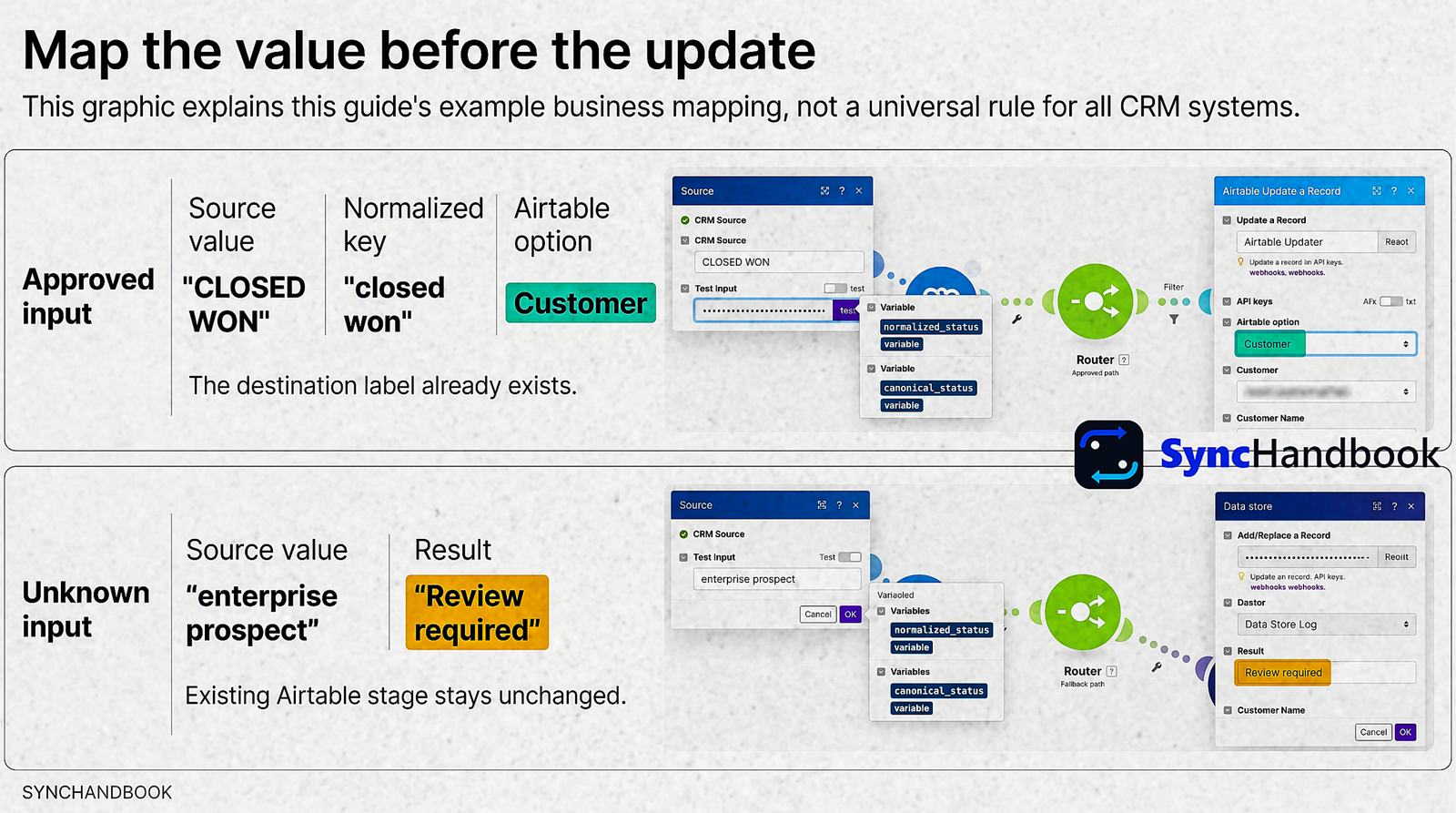
An input such as CLOSED WON becomes closed won. The final Airtable value will still be Customer, with the capitalization defined in the destination.
Inspect the source bundle before using this expression. If the status is a collection such as an object containing a label, map the appropriate text property. Do not stringify the entire object. If the source legitimately supplies several values, use a multiple-select design instead.
Avoid aggressive cleanup that changes meaning. For example, deleting all punctuation might collapse distinct source codes into the same key. Add explicit aliases when the business meaning is known.
Step 4: translate the normalized value into an approved label
Add a second Tools > Set variable module after normalization. Name it canonical_status and use:
switch(
  NORMALIZED_STATUS_TOKEN;
  "new"; "New";
  "new lead"; "New";
  "qualified"; "Qualified";
  "sales qualified"; "Qualified";
  "customer"; "Customer";
  "closed won"; "Customer";
  "__REVIEW__"
)
Replace NORMALIZED_STATUS_TOKEN with the first variable module’s output token. Use Make’s function editor so the expression is evaluated rather than entered as literal text. The switch function selects the matching result and uses the final value when no case matches. Make general functions.
Keep __REVIEW__ as an internal marker. Do not add it to Airtable’s choices. The next step prevents it from reaching the update module.
Do not use New as the default. That would turn missing or unfamiliar data into a confident classification and could move an existing customer back into a prospect workflow.
For a larger mapping, maintain a reviewed lookup table with unique source keys and explicit destination labels. This small example stays in one expression so the complete decision can be inspected without another dependency.
Step 5: route unknown values into a review queue
Insert a Router after the second variable module. Create one approved route and mark a second route as the fallback. A fallback handles bundles that do not match the other routes. Make router documentation.
On the approved route, configure a filter with these conditions joined by OR:
canonical_statusequalsNew.canonical_statusequalsQualified.canonical_statusequalsCustomer.
Connect this route to the Airtable update. The fallback must end in a review record without writing Lifecycle stage.
Create a Make data store named airtable_select_review. Use Data store > Add/Replace a Record on the fallback route. For this single-source example, construct its key from a fixed source label and the source event ID:
crm_sync:{source_event_id}Replace the placeholder with a mapped token. Use a different fixed prefix for another source. Save these fields:
| Field | Type | Value |
|---|---|---|
source_event_id | Text | Source change identifier. |
record_id | Text | Intended Airtable record. |
raw_status | Text | Original input, or an empty string. |
normalized_status | Text | Normalized lookup key. |
reason | Text | unmapped_or_empty_status. |
review_status | Text | pending. |
last_seen_at | Date | Current execution time. |
The key groups repeated delivery of the same source change into one review item. This Add/Replace design can reopen a resolved item on replay; the reviewer should recognize that behavior. It is a review queue, not a guarantee of exactly-once processing. Make data stores.
Assign an owner to check pending items. A successful scenario run that only saved a review item does not mean Airtable was updated.
Step 6: map only the approved value into Airtable
On the approved route, open Update a Record again. Replace the fixed test option with the canonical_status token, enabling mapping for that field where the module requires it. Keep Smart links disabled.
Map the known record_id and update only Lifecycle stage. Confirm that your test record’s unrelated fields remain unchanged.
For API debugging, the equivalent single-record request uses this endpoint:
PATCH https://api.airtable.com/v0/{baseId}/{tableId}/{recordId}
Content-Type: application/json
Its body for the example mapping is:
{
  "fields": {
    "Lifecycle stage": "Customer"
  },
  "typecast": false
}
This is a request reference, not an instruction to replace the native module. A direct request also needs authorized authentication. PATCH updates specified fields; Airtable documents PUT as clearing unspecified cell values. Do not substitute PUT while debugging. Update record API.
For an empty input, this workflow performs no Airtable update at all. If your business needs to clear a stage, implement a separate, explicit operation. Make documents the erase value for clearing a field; do not introduce it as a fallback for an unknown status. Airtable module reference.
Step 7: recover failures without replaying stale updates
Enable Store incomplete executions in scenario settings. Attach a Retry error handler to the Airtable update and the review-store write, with Automatically complete execution set to No for the initial validation-error recovery process. Check the stored failure before resuming it. Make incomplete executions, Retry error handler.
A rejected select label needs a corrected label, field configuration, or permission decision. Repeating the identical request does not make that label valid.
Distinguish two recovery cases:
- Airtable configuration was corrected and the saved mapped value is still current: inspect the stored execution, then resume the failed write.
- The translation logic changed: do not assume the saved execution will recompute earlier variables. Reprocess the current source value through the corrected mapping.
Before either action, inspect the current source and destination. An old Qualified event must not overwrite a legitimate newer Customer state simply because the old execution was recovered last.
This example validates vocabulary. It does not provide event ordering or concurrency control across writers. Keep your existing source-version checks, or review replays manually where those checks are absent.
For broader recovery patterns, see our Make alert workflow and failed-execution recovery guide. Its delivery-receipt logic addresses a different problem and should not be copied as a substitute for status validation.
Step 8: run acceptance tests before restoring the live path
Use your disposable record and a distinct source event ID for each test. A temporary Tools > Set multiple variables module can provide record_id, source_event_id, and raw_status while you run the validation path manually.
Set a recognizable initial Lifecycle stage before each test so you can detect unintended changes.
| Test input or condition | Expected outcome |
|---|---|
qualified | Airtable contains Qualified. |
CLOSED WON | Airtable contains Customer. |
sales qualified | Airtable contains Qualified. |
enterprise prospect | Review item saved; existing stage preserved. |
| Empty text or a missing status | Review item saved; existing stage preserved. |
Internal marker __REVIEW__ as source text | Review item saved; marker never written to Airtable. |
| Same unknown event delivered twice | One review key remains; its last-seen time is updated. |
| Approved option temporarily absent from the test field | Write fails visibly; no replacement choice is created. |
| Review-store write fails | Incomplete execution retained for investigation. |
| An old event is recovered after a newer status | Reviewer checks the current source before any replay. |
Also compare the destination’s option list before and after the tests. Passing this workflow means the right records changed and no unexpected choices appeared.
Restore the real upstream source only after checking its mapped tokens. During the initial rollout, compare source changes, successful updates, review items, and incomplete executions daily. Record actual results instead of treating this test plan as evidence that your implementation has already passed.
Should you enable Smart links or typecast instead?
Airtable’s troubleshooting guide identifies Make’s Smart links as the connector setting corresponding to typecast. With typecasting enabled, an unmatched choice can create a new option; creating choices also depends on the connection user’s permissions. Airtable API troubleshooting.
That can be appropriate for an approved one-time import of new categories. It is a different decision from correcting a misspelled customer stage.
For this guide, keep the approved vocabulary fixed. If Custmer arrives tomorrow, an automatic new option would conceal the upstream defect and fragment reporting. Send it for review, then correct the source or approve an alias.
If option creation is intentional, test it in isolation and inspect the resulting choices before a bulk import. Do not increase a production connection’s permissions merely to make an unexplained error disappear.
What changes for a multiple-select field?
The main walkthrough handles one status. A multiple-select field uses a different REST payload shape: an array of option names. For example:
{
  "fields": {
    "Services": ["Implementation", "Training"]
  },
  "typecast": false
}
Do not send "Implementation, Training" when you intend two selections. Do not reuse the switch expression on an entire array. Translate each source item, reject the update if any item remains unknown, and construct an array of approved labels. Native Make inputs may present arrays differently from the raw REST body. Airtable field types and cell values.
Updating a multiple-select array replaces the current selection. If the record already contains Support, sending only the two values above removes that selection. For an append operation, retrieve the current values, combine and deduplicate them, then write the intended full set. Concurrent writers can still make that read-modify-write sequence lose changes. Airtable field types and cell values.
Do not filter unknown values out silently and then write an empty array: that could clear a previously useful selection. Define whether your source owns the complete list before implementing this variation.
Frequently asked questions
Why does selecting a value manually work when mapping fails?
The manually selected label may differ from the value in the actual source bundle. Compare the failed module’s input with the approved mapping, including spaces and whether you selected a text property or an entire object.
Should I change the field to plain text?
Use text when the information genuinely has an open-ended vocabulary. Keep a select field when other processes rely on a controlled set of stages. Changing the field type solely to suppress validation moves the data-quality problem downstream.
Can I use this before lead assignment or onboarding?
Yes, after resolving record identity and confirming the intended business mapping. For example, place validation before your lead enrichment and round-robin workflow consumes a normalized stage. Adapt its accepted values rather than assuming this article’s three labels match every CRM.
How do I know the Airtable 422 error is actually fixed?
Check the stored record, the option list, and the review queue. A known value should reach the correct record; an unknown value should remain reviewable without changing that record. A green execution indicator alone does not establish either result.
Primary sources
- Airtable API troubleshooting
- Airtable single-select fields
- Airtable update record API
- Airtable field types and cell values
- Make Airtable connection
- Make Airtable modules
- Make text functions
- Make general functions
- Make router
- Make incomplete executions
- Make Retry error handler
Editorial verification and limitations
Official sources were checked on September 13, 2026. This date does not represent a live scenario test date. The article does not present the process as having been executed on live accounts.
Key points verified:
- Exact label matching and typecast behavior in Airtable selection options.
- The “Smart links” setting in Make and Airtable’s explanation regarding this setting.
- The difference between a single-record PATCH update and a PUT request.
- Array format for multi-select fields and the modification of existing selections.
- Documented syntax for the
lower,trim,ifempty, andswitchfunctions. - Concepts of fallback routes and incomplete execution.
Items not verified live:
- Permissions and field configuration of your Airtable connection.
- Actual execution results of modules within the Make account.
- Event sequencing and record ID resolution of the upstream CRM.
- The final mobile appearance of the WordPress theme.