

Your Google Drive file opens in a browser, but your Make scenario stops with 404 File Not Found. Before recreating the connection or moving the document, check which Google account Make is using and which exact resource the failed module requested.
A Google Drive 404 can mean that the requested file does not exist or that the authenticated account cannot read it. It is not proof that someone deleted the document. Google also identifies Shared Drive support as a relevant check for these requests. Google Drive error documentation
This guide gives you a controlled way to separate account problems, incorrect IDs, search configuration, shortcuts, and download mistakes. Start with a read-only lookup, change one variable at a time, and return to the production workflow only after you can explain the result.
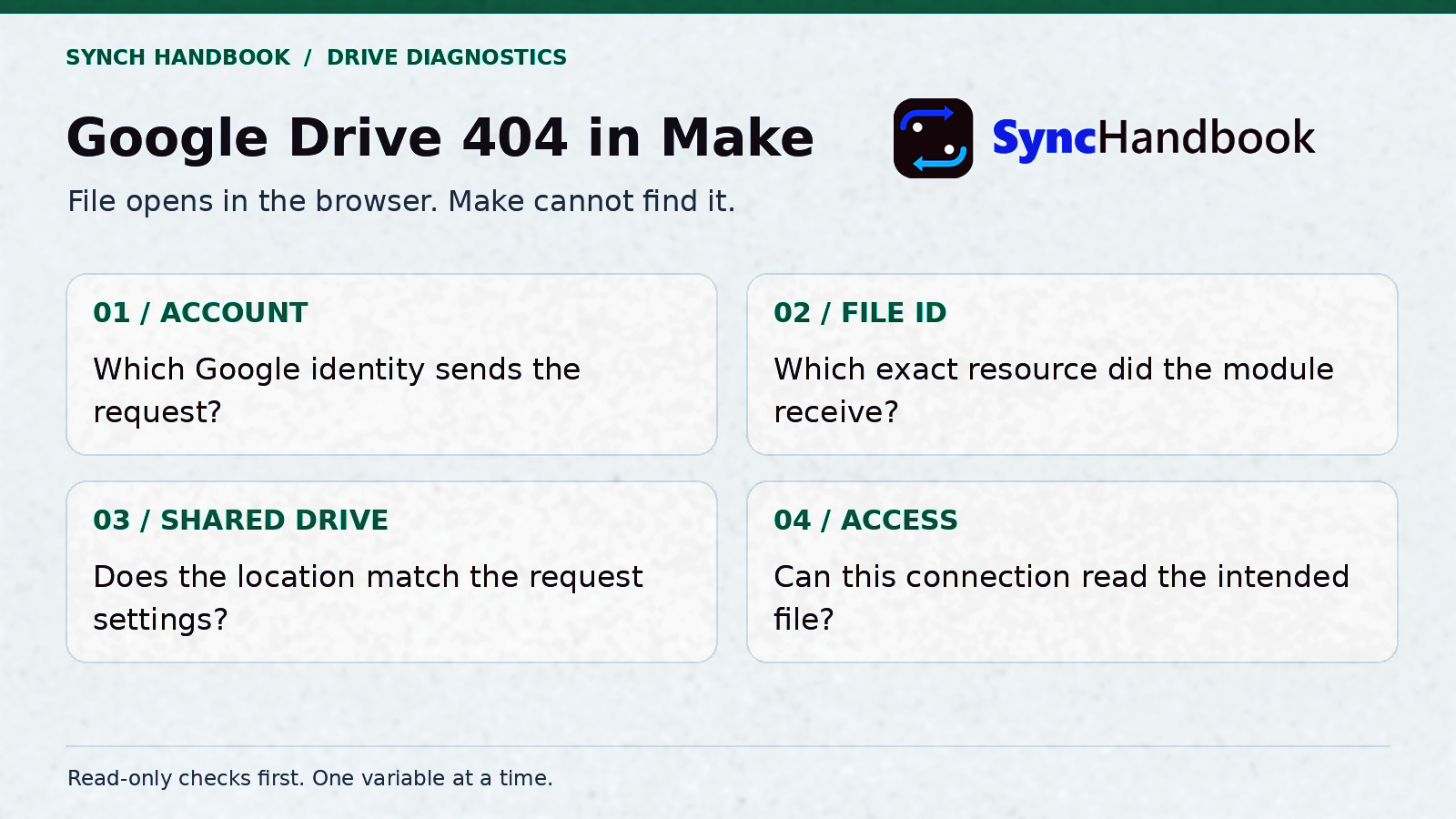
Start with the identity and resource behind the failed request.
The file opens in my browser
Start by comparing the account behind the failed Make module with your browser account. Then run the known-ID metadata check.
Check the accountDirect lookup works, search fails
Keep the connection unchanged. Compare the actual parent folder, Shared Drive ID, filters, and pagination.
Inspect the searchMetadata works, content retrieval fails
Inspect the actual MIME type. Uploaded files use download, while native Docs, Sheets, and Slides use export.
Choose the operationStart here: choose the symptom that matches your run
You do not need to perform every check. Use the table to choose your first branch, then return to the recovery checklist before enabling normal processing.
| What you see | Start with | What the check establishes |
|---|---|---|
| File opens in your browser, but Make returns 404 | Check 1: connected account | Whether the two requests use the same identity |
| One record fails while others work | Check 2: exact mapped ID | Whether this input points to the intended resource |
| File lookup works, but search returns nothing | Checks 3 and 5: location and search | Whether the search is looking in the correct place |
| Shared Drive not found | Checks 1, 3, and 5 | Whether the account, drive ID, and search settings agree |
| A shortcut is visible, but its document fails | Check 7: shortcut target | Whether Make can read the underlying file |
| A link works, but a bare file ID fails | Check 8: resource key | Whether the link carries additional access context |
| Metadata loads, but download fails | Check 9: operation and MIME type | Whether the requested operation fits the file |
| Upload fails after the source download succeeds | Check 10: destination folder | Whether the destination is accessible and writable |
Before you start: open the failed execution and keep its input available. Make a separate manual diagnostic scenario with only the Google Drive connection and the read-only request you need. Do not use a full production rerun as a file-access test if that run also creates folders, sends messages, or uploads documents.
The examples below use illustrative IDs and addresses. They describe Drive API v3 requests, not a Make blueprint or a record of a live account test. Module labels and exposed options can vary; use the documented API parameters when the standard module does not expose a needed setting.
Check 1: confirm the Google account behind the Make connection
The connection label is useful for organization, but it is not sufficient evidence of the signed-in Google account. A connection called “Client Drive” might still belong to the person who originally built the scenario.
Write down the connection selected in the failed module, then compare it with the connection in your diagnostic module. A scenario can contain several Google Drive modules with different connections. Checking only the first module can leave the actual failure unexplained.
Use an authenticated request through that same connection:
GET https://www.googleapis.com/drive/v3/about?fields=user(displayName,emailAddress,permissionId)The about.get method returns information about the
authenticated user, and it requires a fields parameter.
Here we request only the user identity needed for diagnosis. Google
Drive about.get reference
For Make’s Google Drive API-call module, use the relative endpoint
according to the base URL shown in the module. For example, if the
displayed base already ends in /drive/v3, enter
/about, not /drive/v3/about. Put the field
selection in the query-string inputs. Let the connection handle
authentication.
Compare the returned email with the Google profile that opens the file in your browser. If you use several browser profiles, check the active profile on that specific document. Do not rely on the account shown on a different tab.
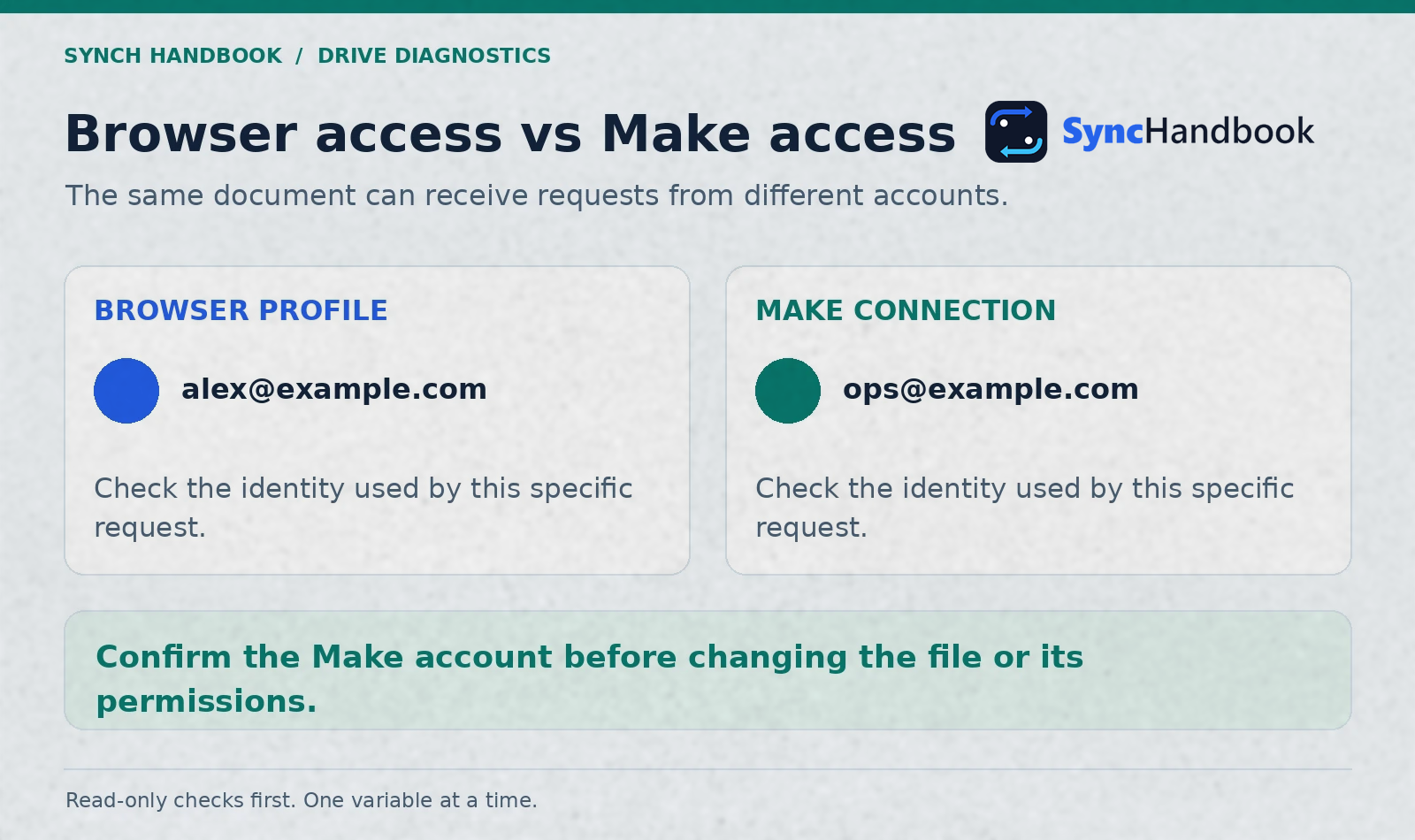
Opening a document as one account does not test a request sent as another account.
If the accounts differ, choose the intended operating account deliberately. Either select the correct existing connection or have the responsible owner grant the required access to the account that should run the automation. Then repeat the same read-only lookup. Keep the file ID unchanged so the result isolates the identity change.
If the accounts match, continue. You have ruled out one hypothesis, not proved that every other permission and application setting is correct.
Check 2: inspect the exact file ID sent by the failed module
Open the failed module’s input, not just its configuration. The mapping can look correct while a particular incoming record supplies an empty value, an old ID, or a full sharing URL.
Record the literal value received by the File ID field. Then compare it with the intended file’s link. These are illustrative URL patterns:
https://drive.google.com/file/d/FILE_ID/view
https://docs.google.com/document/d/FILE_ID/edit
https://docs.google.com/spreadsheets/d/FILE_ID/edit
https://drive.google.com/drive/folders/FOLDER_IDDo not paste the complete URL into a field that expects only the ID.
Preserve an additional resourcekey query parameter
separately if the original sharing link includes one; Check 8 explains
when it matters.
For a failing upload, ask whether the error references the destination folder rather than the source document. For a failed search, inspect the Shared Drive ID separately from the parent folder ID. Several different resources can participate in one scenario.
| Value to record | Example label in your diagnostic notes | Why keep it separate? |
|---|---|---|
| Source file ID | source_file_id | Identifies the document being read |
| Destination folder ID | destination_folder_id | Identifies where an upload should go |
| Shared Drive ID | shared_drive_id | Identifies the container used for a drive-specific search |
| Shortcut target ID | target_file_id | Identifies the actual document behind a shortcut |
A folder is a Drive resource, so a metadata lookup can succeed even when you accidentally supplied a folder ID to a later download step. “The ID exists” is therefore only part of the check. The returned name and MIME type must match the intended input.
Add an input guard before the production request. An empty source ID should produce a clear review item containing the upstream record reference. It should not silently turn into a broad filename search or an instruction to create a replacement folder.
Check 3: distinguish My Drive, Shared with me, and Shared Drives
The word “shared” is easy to misinterpret in an automation setup. A document shared by a client does not automatically belong to a Google Workspace Shared Drive.
My Drive contains items associated with an individual user’s Drive. Shared with me is a view of items other people have shared with the user. A Shared Drive is a separate organizational container with its own identifier and membership model. Google documents Shared Drive access and API support separately from ordinary file sharing. Drive sharing guide
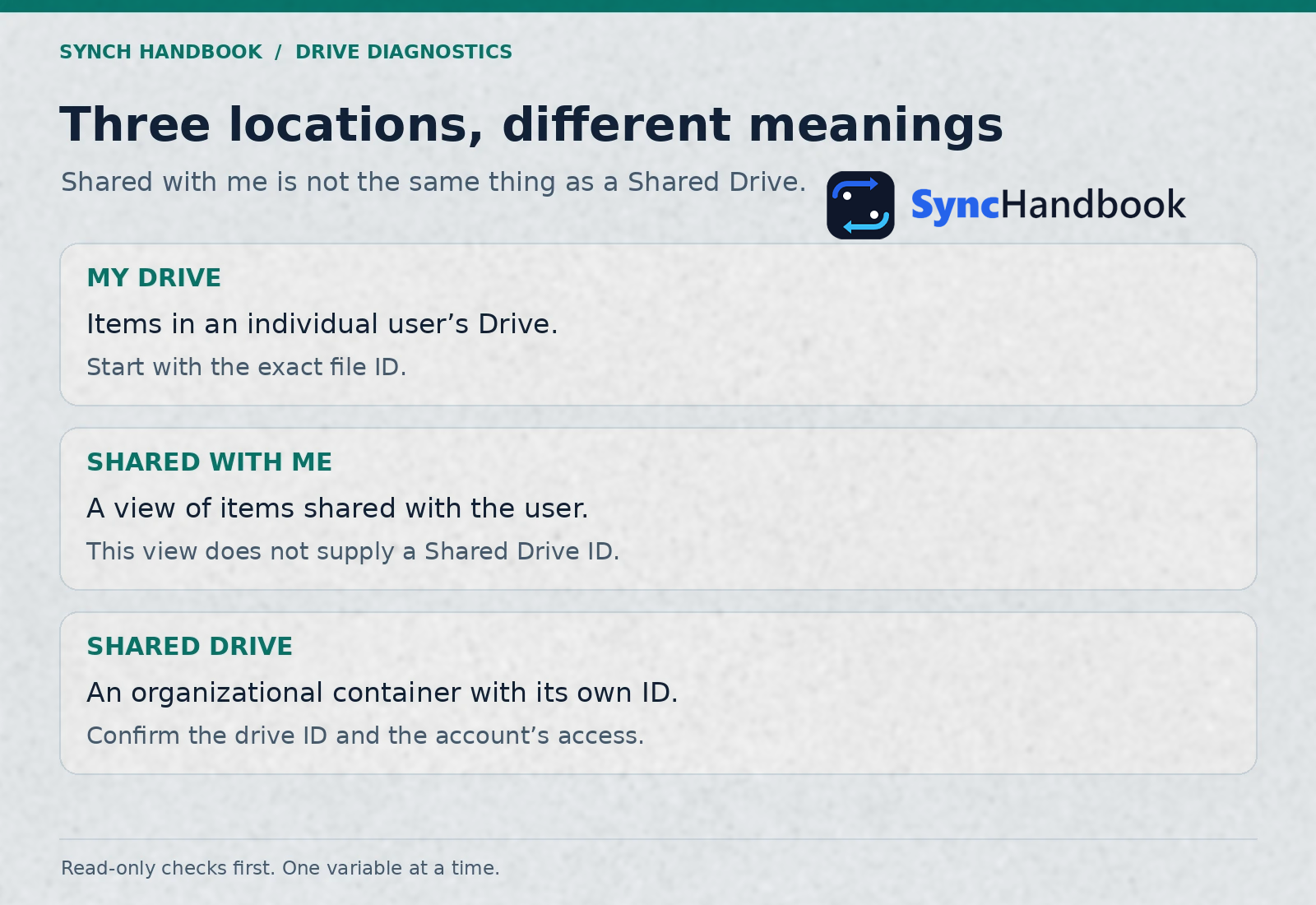
Shared with me is a view, not a Shared Drive ID.
For diagnosis, write down where the file actually lives. “I can see
it under Shared with me” describes how you found it, but it does not
supply the driveId needed for a Shared Drive search.
If a client pasted a normal folder link into a configuration field labeled Shared Drive, revisit that mapping. An ordinary folder ID is not interchangeable with a Shared Drive ID. A Shared Drive’s root is a special case; avoid trying to infer the resource category from the visual shape of its ID.
When a file metadata response includes driveId, use that
evidence to identify its Shared Drive context. If the metadata request
itself fails, ask the file owner or Workspace administrator to confirm
the actual location and the operating account’s access before
experimenting with search settings.
Check 4: run one known-ID metadata lookup
A direct metadata request is the central diagnostic test in this guide. It separates “Can this connection read this resource?” from “Can my search discover it?”
Use the same connection as the failed module. Send a GET request to the following endpoint, replacing the placeholder with the exact file ID:
GET https://www.googleapis.com/drive/v3/files/FILE_IDAdd these query parameters separately:
| Parameter | Value |
|---|---|
supportsAllDrives | true |
fields | id,name,mimeType,trashed,driveId,parents,shortcutDetails,capabilities |
This requests metadata rather than document content.
files.get accepts the file ID and Shared Drive support
parameter; the field selection keeps the response focused. Google
Drive files.get reference
In Make, select GET, leave the request body empty, and use the connection’s authentication. If the app exposes a dedicated metadata module with the required options, that can serve the same purpose. If you use an API-call module, check its displayed URL base before entering a relative path.
Interpret the response before changing anything:
| Result | What you have learned | Next action |
|---|---|---|
| Correct name and expected MIME type | This connection can read this resource’s metadata | Investigate the original search or content operation |
| A different name or unexpected type | The request resolved, but possibly to the wrong resource | Revisit the upstream ID mapping |
| Shortcut MIME type | You looked up a shortcut | Resolve its target in Check 7 |
trashed: true | The accessible resource is in trash | Ask the owner whether restoration is intended |
| 404 | Existence and access are still unresolved | Continue with identity, access, and link context |
| 400 | The request itself may be malformed | Check the endpoint and parameter spelling |
Keep this request as your comparison point. After each relevant change, run this exact lookup again. A consistent test makes it easier to explain which change actually restored access.
Check 5: repair Shared Drive search settings
If the known-ID request works but your search returns no matching files, focus on discovery. Reconnecting an already working identity is unlikely to explain a search restricted to the wrong drive or folder.
For a search inside one Shared Drive, the important parameters are
corpora=drive, the actual driveId,
includeItemsFromAllDrives=true, and
supportsAllDrives=true. These options describe the search
and application support; they do not grant permission to read private
resources. Implement
Shared Drive support
The following request searches direct children of one folder:
GET https://www.googleapis.com/drive/v3/files| Query parameter | Example value |
|---|---|
corpora | drive |
driveId | SHARED_DRIVE_ID |
includeItemsFromAllDrives | true |
supportsAllDrives | true |
q | 'FOLDER_ID' in parents and trashed = false |
pageSize | 100 |
fields | nextPageToken,incompleteSearch,files(id,name,mimeType,driveId,parents) |
Enter the query as the value of q, without surrounding
the entire expression in an extra pair of quotes. The client should
URL-encode query parameter values when sending them.
The parent condition means direct children, not every document in every nested folder. If the expected file is two folders deeper, a correct direct-child search can still return no match. Filename conditions also need the query escaping rules described in Google’s search guide. Search for files and folders
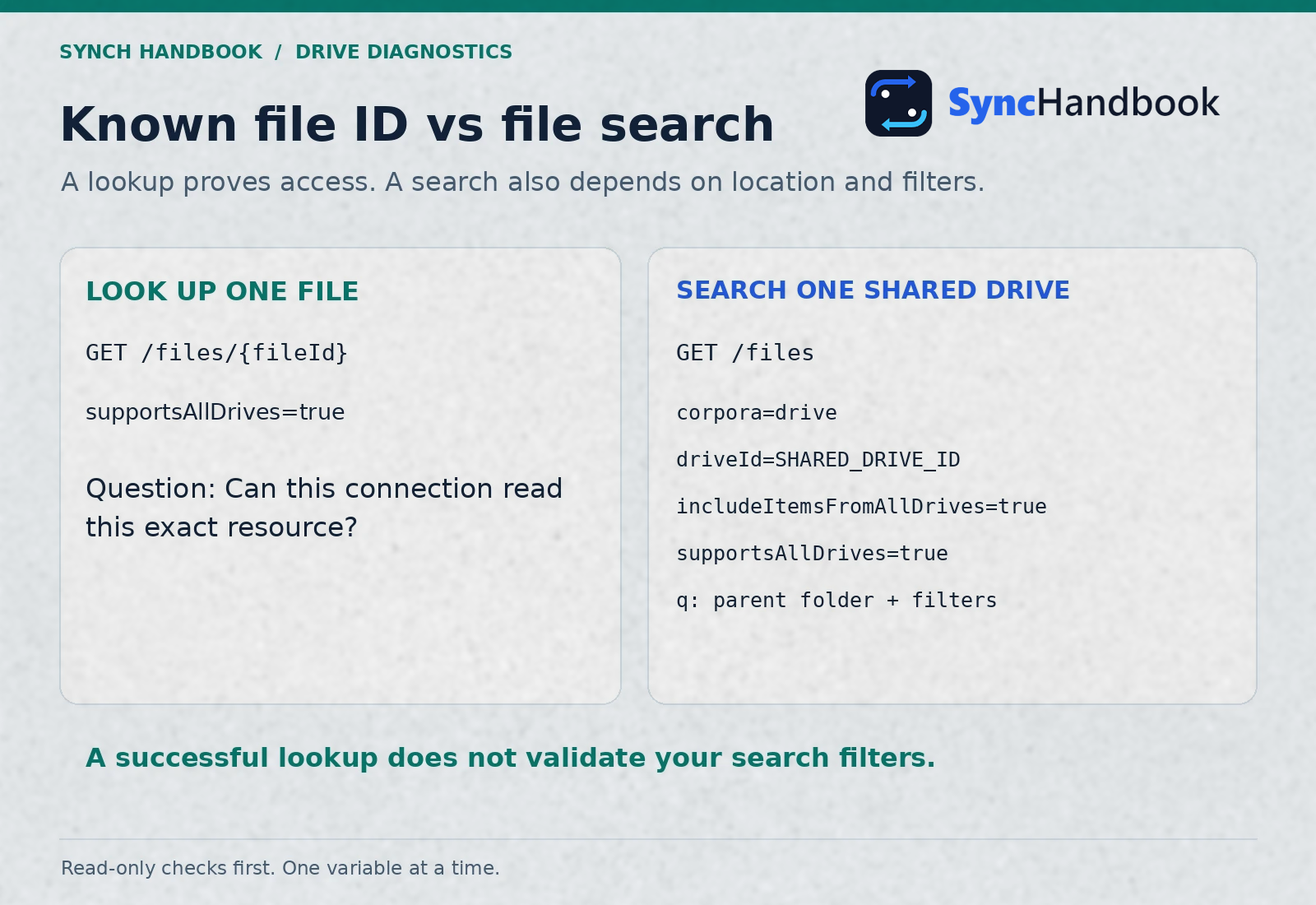
A successful lookup does not prove that the search corpus or folder filter is correct.
If nextPageToken is returned, retrieve the next page
with the same search parameters plus pageToken. Continue
until no token remains. Do not assume the first page is the complete
result set, and inspect incompleteSearch if returned.
Google’s list reference also notes that partial or empty pages can occur
before the end of a listing. Google
Drive files.list reference
Use a narrow comparison test: first search the confirmed parent folder without a filename condition, then add the filename filter. This reveals whether the problem starts with the location or with the name expression. Avoid changing both at once.
Check 6: separate file permission from OAuth scope
Two different questions affect an API request: what the Google user may access, and what the application has been authorized to do. A browser test mainly helps with the first question.
For example, Google’s drive.file scope provides per-file
access for files created or opened by the app, or shared with the app
through an appropriate authorization flow. It does not mean the
application can automatically access every file the user can open in a
browser. Declaring a scope in a Cloud project is also distinct from
requesting and granting it through authorization. Choose
Google Drive API scopes
If you use a custom OAuth client with Make, compare its setup with the current Make connection documentation. Check the actual authorization flow and approved scopes, rather than assuming that a saved console setting changed an existing connection. Make Google Drive connection documentation
Do not broaden access simply because the error message is frustrating. Establish which operation is failing, which account is responsible, and which authorization model the workflow requires. Ask the administrator for the specific change supported by that evidence.
A useful request sounds like this: “The connection belongs to ops@example.com. Metadata lookup for the supplied file ID returns 404. The owner can open the document. Please confirm access for this account and whether our application is authorized to read this file.”
That is more actionable than “Please make the integration an administrator.” Reauthorize only when the diagnosis points to the connection or granted authorization, then repeat the unchanged metadata test.
Check 7: resolve shortcuts before reading the document
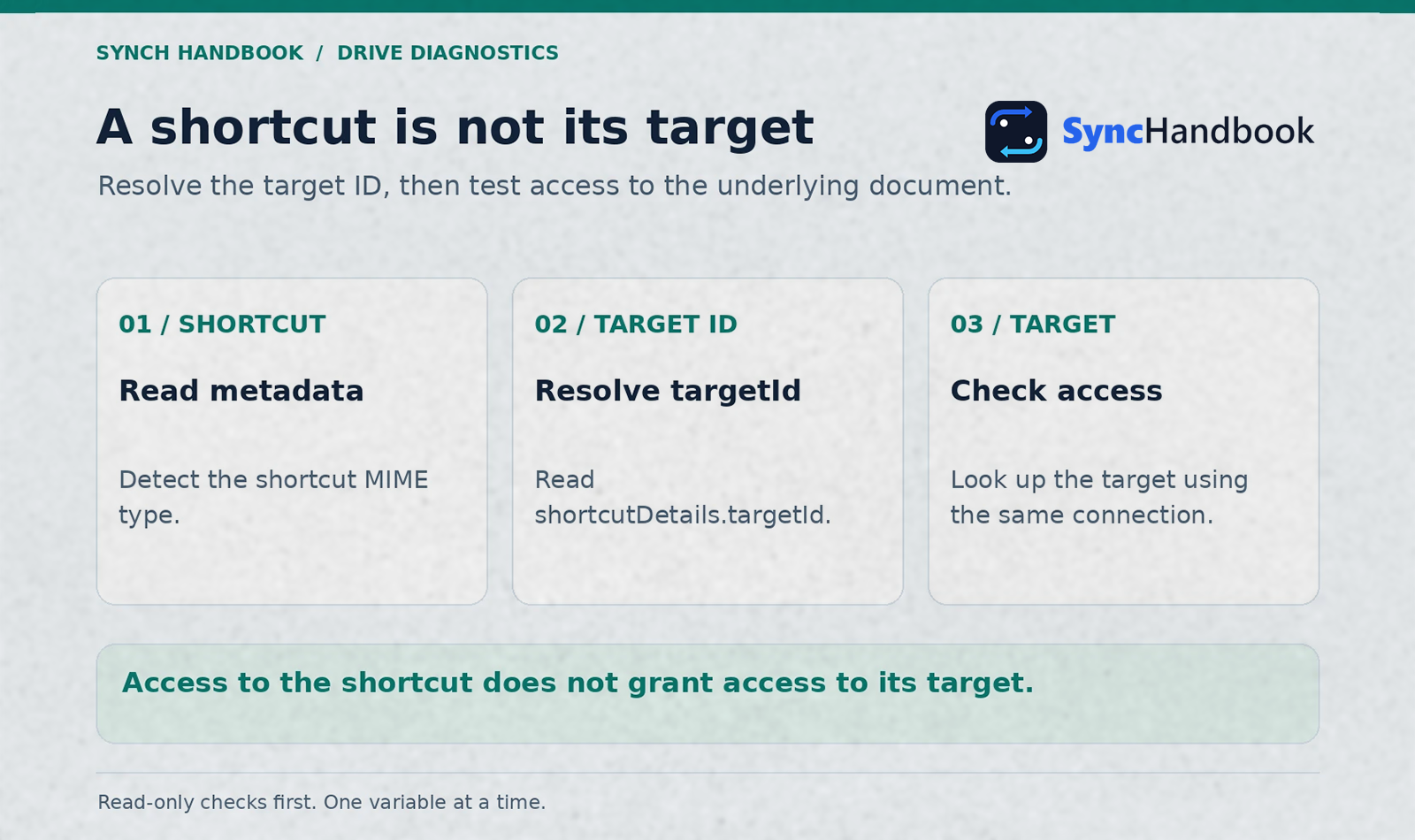
A shortcut is its own Drive resource. It can be visible while its
target is inaccessible. Google identifies shortcuts with MIME type
application/vnd.google-apps.shortcut and exposes the
underlying resource through shortcutDetails.targetId.
Access to the shortcut does not automatically grant access to that
target. Google
Drive shortcuts guide
Use the metadata response from Check 4. If it describes a shortcut, read its target ID and run a second metadata lookup for that target using the same connection.
An illustrative response fragment looks like this:
 "id": "SHORTCUT_ID",
  "mimeType": "application/vnd.google-apps.shortcut",
  "shortcutDetails": {
    "targetId": "TARGET_FILE_ID",
    "targetMimeType": "application/vnd.google-apps.document"
  }
Keep the shortcut ID and target ID separate in your execution notes.
Use the target’s fresh metadata to choose the next operation. The shortcut’s stored target MIME type can become stale, so treat it as a hint rather than your final content-routing decision.
If the target lookup fails, ask the owner to verify the underlying document. Recreating the shortcut is not a useful first response when the missing permission belongs to the target.
In a client onboarding workflow, retain both IDs when the input is a shortcut. That gives the person investigating a later failure enough information to distinguish the link the client supplied from the document the automation attempted to read.
Check 8: preserve resource keys from link-shared files
Some link-shared files require a resource key in addition to the file ID. A sharing URL can therefore contain useful context that is lost when an integration stores only the bare ID.
Google documents resourceKey on file metadata and
shortcutDetails.targetResourceKey for shortcut targets.
When required, send the key in the
X-Goog-Drive-Resource-Keys request header using a
fileId/resourceKey pair. Access
link-shared files using resource keys
The following is an illustrative header, not a credential you can use:
X-Goog-Drive-Resource-Keys: FILE_ID/RESOURCE_KEYFor a target lookup, use the target file’s ID and its corresponding key. Do not pair a shortcut ID with a target resource key.
This check is especially useful when someone supplied a sharing link and the workflow extracted only part of it. Compare the original input with the stored record before asking the client to reshare the document.
A resource key is not a substitute for OAuth authorization or a way to override file permissions. If the standard module does not expose the required header, use a supported authenticated API-call path or ask the owner to provide appropriate direct access to the intended operating account.
Check 9: choose download or export from the actual file type
Once metadata lookup succeeds, stop treating every later failure as a missing-file problem. Reading metadata and retrieving content are separate operations.
Uploaded binary files, such as PDFs and images, can be downloaded
through files.get with alt=media. Native
Google Docs, Sheets, and Slides use an export operation with a supported
output MIME type. Check download capability and restrictions before
requesting content. Download
and export Drive files
| Resource returned by metadata | Next operation | Example output |
|---|---|---|
| Uploaded PDF or PNG | Download file content | Original binary file |
| Google Docs document | Export to a supported format | PDF or another supported document format |
| Google Sheets spreadsheet | Export to a supported format | XLSX, PDF, or another supported format |
| Google Slides presentation | Export to a supported format | PPTX, PDF, or another supported format |
| Shortcut | Resolve and inspect the target | Depends on the target |
| Folder | List its children | File metadata records |
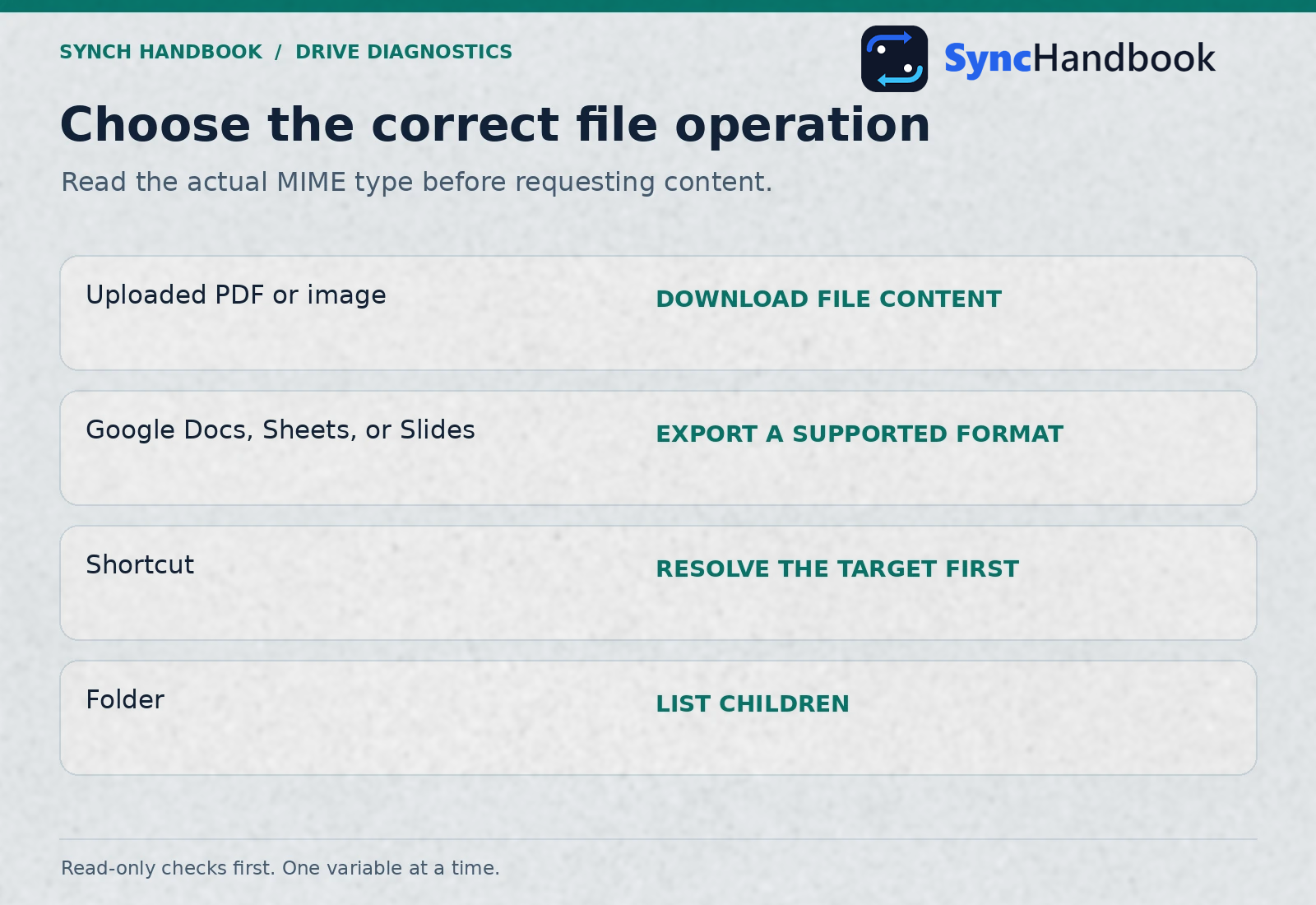
Route on the actual MIME type rather than the filename extension alone.
A binary download request can look like this:
GET https://www.googleapis.com/drive/v3/files/FILE_ID?alt=media&supportsAllDrives=trueAn export request for a supported Google Workspace document can look like this:
GET https://www.googleapis.com/drive/v3/files/FILE_ID/export?mimeType=application%2FpdfThese requests return content, not the metadata JSON used earlier. In Make, map the resulting file data and an appropriate filename into the destination module. Do not map the metadata response body as though it were the downloaded document.
Validate one controlled output before processing a batch. Open the resulting file, check that its contents match the source, and confirm that its filename extension agrees with the chosen output format. This catches a second class of failures that an HTTP success response alone will not reveal.
Check 10: inspect the destination folder separately
Suppose the source document downloads successfully but the next upload fails. At that point, testing source access again will not answer the destination question.
Run the same metadata lookup for the destination folder ID. Confirm
that the response describes the folder you intend to use. Inspect
capabilities.canAddChildren where applicable, alongside the
folder MIME type. Drive capability fields describe what the current user
can do with the resource; the relevant capability is more informative
than a generic assumption about their role. Drive
file resource reference
Keep read access and write access separate in your diagnostic notes. A successful metadata lookup is not proof that an upload is allowed.
If the workflow creates client folders, test the configured parent folder first. A correct client name cannot compensate for a stale or inaccessible parent ID.
For a controlled write test, use a designated test folder and a clearly named disposable file after the read checks pass. Confirm the destination and sharing behavior before resuming client processing. The read-only diagnostic scenario should remain separate so a future access investigation does not accidentally create more files.
Worked example: the file opens, search is empty, and the fix is a filter
Consider an illustrative onboarding scenario that receives a folder ID from a CRM, finds a signed agreement, downloads it, and attaches it to a project record. One client’s run finds nothing, although the account owner can open the agreement.
First, the operator inspects the failed run and copies the exact folder ID. The diagnostic account check shows the expected operating identity. Next, a direct metadata lookup for the agreement succeeds with the expected name and MIME type.
At this point, changing the connection would discard a useful finding: the connection already reads the intended document. The operator compares the agreement’s parent with the folder supplied by the CRM and discovers that the agreement sits inside an additional “Signed” subfolder.
The original search was restricted to direct children of the outer client folder. It was not a recursive search. The operator updates the workflow’s folder selection to the intended subfolder, repeats the narrow search, and confirms the expected record appears before testing the download.
The permanent correction is not simply “retry failed runs.” It is to define which folder the client record stores and validate that meaning when the onboarding record is created. Store the resolved destination or document identifier once it is known, alongside the business record it belongs to.
Use this reasoning pattern even when the final cause differs: establish identity, prove direct access, compare the original operation, and change the smallest relevant input.
Recover the failed run without duplicating completed work
Fixing access answers whether the file operation can succeed now. It does not tell you which earlier actions already succeeded in the original run.
Before replaying anything, inspect the execution history and write down the last confirmed business action. Did the scenario already create a client folder? Did it create a project? Did it send a notification before reaching the failed Drive module?
Use the upstream record ID as the business reference for recovery. Check whether its intended output already exists in your tracking system. Then resume or repeat the smallest supported part of the workflow that completes the missing action.
For future runs, place an access check before expensive or externally visible actions when practical. A workflow that validates its source document before sending a “Your documents are ready” email gives the operator a much cleaner recovery path.
Keep a review queue for unresolved document access. Store a record reference, the failed operation, the relevant resource ID, and a short reason. A reviewer should be able to correct the input or access and explicitly release the item for processing.
Do not convert every missing-file response into a new folder creation. That fallback can scatter client documents across duplicate folders while hiding the original configuration mistake.
Test the correction before enabling the full schedule
Choose the cases that match your workflow. These are acceptance checks to run in your environment, not claims that your scenario has already passed them.
| Test case | Evidence to collect | Passing condition |
|---|---|---|
| Intended operating account | Identity response | Matches the account responsible for automation |
| Known valid source file | Metadata response | Correct ID, name, and MIME type |
| Empty incoming ID | Filter or review result | No broad search or accidental write occurs |
| Accessible file in a Shared Drive | Lookup response | Resolves with the intended connection |
| Search inside the configured folder | Search inputs and result | Uses the intended folder and drive context |
| Results span several pages | Pagination handling | All pages are processed or the configured limit is explicit |
| Shortcut input | Target lookup response | Correct underlying document is resolved |
| Link with a resource key | Original link and request setup | Required context is preserved |
| Workspace document | Exported test file | Opens in the selected format |
| Uploaded binary file | Downloaded test file | Opens and matches the expected source |
| Destination folder | Capabilities and controlled write | The intended operation is allowed there |
| Previously completed business action | Existing output record | Recovery avoids repeating that action |
You can keep this table in the scenario’s operating notes. Record the date, the connection used, and the person who checked the result. That makes the next incident easier to compare without pretending that one successful test guarantees permanent access.
What to include when asking for help
A useful support packet lets someone reproduce the failing read without guessing which resource or account you meant.
Include the module name, operation, execution time, HTTP status, structured error reason if available, and the exact parameter names you used. State whether the direct metadata check succeeds. Distinguish the source file, destination folder, Shared Drive, and shortcut target in your explanation.
Provide resource IDs through an appropriate support channel when needed, but omit OAuth access tokens, refresh tokens, and unrelated client data. If you share screenshots publicly, remove document names or addresses that identify clients.
An effective incident note is short and evidence-based:
Operation: Search for a file inside a client folder
Connection identity: confirmed as the intended operating account
Direct metadata lookup: succeeds for the expected document
Search location: configured Shared Drive and parent folder recorded
Search result: no matching document
Next check: compare actual parent folder and query filtersThis gives the owner a concrete next step. “Google Drive is broken” does not.
Frequently asked questions
Does Google Drive 404 always mean the file was deleted?
No. As explained at the start of this guide, an inaccessible resource can produce that response too. Use the same-account metadata test and have the owner confirm the document before treating deletion as the cause.
Why can I open the file while Make cannot?
Your browser and the failed Make module may use different accounts. Application authorization, Shared Drive settings, shortcut targets, and link context are additional checks. Begin with identity because it gives you a clear comparison for everything that follows.
Does supportsAllDrives=true grant Shared Drive access?
No. It is an API support parameter. The authenticated account still needs the relevant access. Use it with the correct resource and search configuration, not as a replacement for permission.
Should I reconnect Google Drive whenever I see a 404?
Start by recording the current identity and testing the specific resource. Reconnecting can be appropriate when the evidence points to authorization, but it is a poor first experiment when the incoming ID or search folder is wrong.
Should I make the file public to fix the scenario?
Use access appropriate to the workflow and its operating account. Public sharing is an unnecessary change for many private client-document workflows. Diagnose the missing identity, permission, or link context instead of broadening visibility by default.
Can I keep retrying until the error disappears?
A retry does not correct a wrong ID or an ungranted permission. Google recommends backoff for rate-related failures such as 429; that is a different diagnosis from a persistent resource-access failure. Inspect the actual status and error reason before choosing recovery behavior. Drive error handling
How do I stop this problem returning during staff changes?
Document the connection identity, business owner, source location, destination location, and recovery procedure. Include automation access in your client onboarding workflow and SaaS offboarding handover. Review dependent scenarios before retiring the account that originally created their connections.
The useful outcome is an explainable request: the intended account reads the intended resource, the search uses the intended location, and the next operation matches the file type. Once those facts are established, you can fix the failed step and recover the business workflow with confidence.