

To scale your revenue operations effectively, you must automate QuickBooks Online to eliminate manual data entry between your CRM and payment gateways. When an account executive moves an opportunity to Closed Won in HubSpot, finance teams are frequently forced into manual data entry: copy-pasting customer tax details, billing contacts, and custom line items into QuickBooks Online.
Beyond being an administrative drain, manual invoice generation introduces discrepancies in tax rates, currency codes, and revenue reporting. Off-the-shelf connectors often lack support for multi-line products or custom discount logic.
This technical runbook demonstrates how to build an automated, bi-directional integration using Make (formerly Integromat). The scenario listens for closed deals in HubSpot, validates whether the customer already exists in QuickBooks Online, generates a structured invoice, and writes the resulting QuickBooks Invoice ID back into HubSpot.
Table of Contents
Architectural Overview
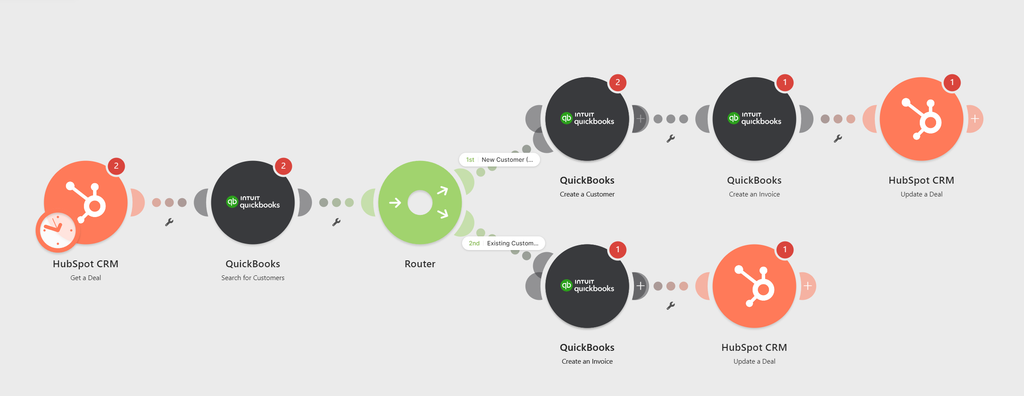
Here is the automated execution pipeline:
- Trigger: HubSpot detects a deal entering the
Closed Wonpipeline stage via webhook. - Customer Lookup: Make queries QuickBooks Online by company domain or customer email.
- Conditional Branching (Router):
- Path A: Customer exists → retrieve the QuickBooks
CustomerId. - Path B: Customer does not exist → create a new QuickBooks Customer record using HubSpot billing metadata.
- Path A: Customer exists → retrieve the QuickBooks
- Line Item Mapping: Deal line items are iterated and formatted into standard QuickBooks line-item payloads.
- Invoice Generation: QuickBooks generates the draft or open invoice.
- Sync Back: Make updates the HubSpot deal record with the QuickBooks
DocNumberand public invoice URL for immediate rep visibility.
Prerequisites
- HubSpot: Super Admin access with a configured Sales Pipeline containing a
Closed Wonstage. - QuickBooks Online: Accountant or Administrator permissions with access to your Chart of Accounts.
- Make.com: A Core or Pro plan (the Router and multi-step modules require standard execution features).
- Custom Field in HubSpot: Create a single-line text field on the Deal object called
QBO Invoice Numberto prevent duplicate triggering.
Step 1: Watch Closed-Won Deals in HubSpot
We trigger the scenario based on stage movement rather than generic updates to minimize operation usage.
- Create a new scenario in Make and add the HubSpot CRM module.
- Select Watch CRM Objects (or Watch Deals).
- Configure the object settings:
- Object Type: Deal
- Trigger By: Stage Updated
- Pipeline: Your primary sales pipeline
- Deal Stage: Closed Won
- Under Output Properties, ensure you include:
dealname,amount,closedate,associatedCompanyIds, andqbo_invoice_number.
Step 2: Check for Existing QuickBooks Customer
To avoid creating redundant customer accounts in your accounting ledger, we run a query matching the customer’s identity.
- Add a QuickBooks Online > Search Customers module.
- Configure the search filter using a SQL-like condition:
DisplayName = '{{1.properties.dealname}}' OR PrimaryEmailAddr = '{{1.properties.billing_email}}' - Set the Limit to
1.
Step 3: Route Between Existing and New Accounts
Add a Router module to branch the execution based on search output:
- Branch 1 (New Customer Creation):
- Filter: Set a filter where
Search Customers: TotalCount Equal to 0. - Action: Add QuickBooks Online > Create a Customer. Map the company name, primary contact name, billing street address, and tax residency from the associated HubSpot company record.
- Filter: Set a filter where
- Branch 2 (Existing Customer Fallback):
- Filter: Set a filter where
Search Customers: TotalCount Greater than 0. - Pass the returned
Idforward to the invoice generator.
- Filter: Set a filter where
Step 4: Create the QuickBooks Online Invoice
Add the QuickBooks Online > Create an Invoice module at the convergence of your branches:
- Customer: Map the dynamic customer ID:
ifempty(3.Id; 2.Id)(reads the newly created ID if Path A ran, or the searched ID if Path B ran). - TxnDate: Map
formatDate(1.properties.closedate; YYYY-MM-DD). - Due Date: Map your organization’s standard payment terms (e.g., Net 30:
addDays(1.properties.closedate; 30)). - Line Items: Under Lines, configure the charge item:
- Description:
Contract fulfillment: {{1.properties.dealname}} - Amount: Map the total deal value from HubSpot (
1.properties.amount). - Account: Select your designated Sales / Operating Revenue account from the dropdown.
- Description:
Step 5: Write Back the Invoice ID to HubSpot
Closing the loop provides your sales team immediate visibility without needing accounting software seats:
- Add a HubSpot CRM > Update an Object module.
- Object Type: Deal.
- Object ID: Map
{{1.id}}. - Fields to Update:
QBO Invoice Number: Map{{4.DocNumber}}(the generated invoice number from QuickBooks).
Handling Common Edge Cases
1. Loop Prevention and Idempotency
When HubSpot updates a deal property (such as saving the Invoice Number in Step 5), it triggers a property change event. If your trigger is configured loosely, this can create an infinite execution loop.
Always add an initial filter immediately after the HubSpot trigger: Proceed only if QBO Invoice Number Does Not Exist. If an invoice number is already populated, the scenario halts immediately, preventing duplicate invoices.
2. Multi-Line Item Deals
If your sales team adds discrete SKUs or recurring service tiers in HubSpot, using a single aggregate deal amount will flatten the invoice. In that scenario, add a HubSpot > Get Deal Line Items module followed by an Array Aggregator to map discrete product rows into the QuickBooks Line payload.
Scenario 2: Auto-Syncing Stripe Payout Transactions to QuickBooks Online
Architectural Overview to Automate QuickBooks Online
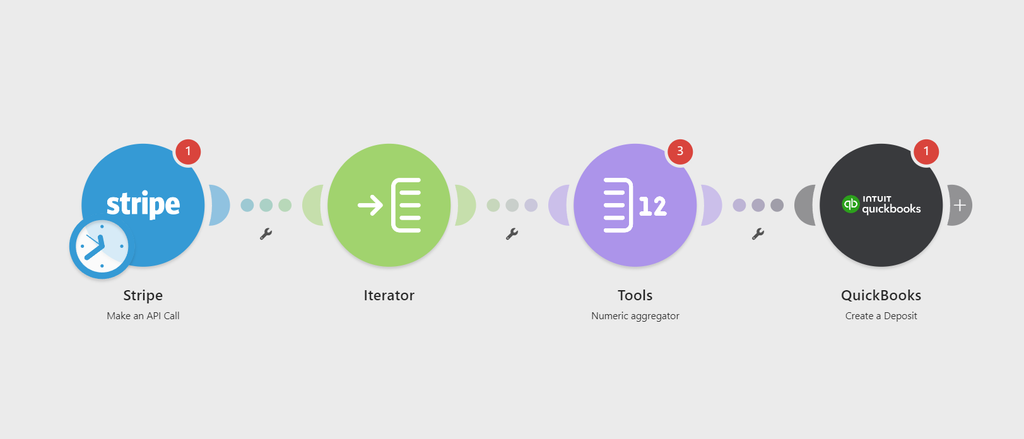
Here is the data pipeline we will build:
- Trigger: Stripe fires a
payout.paidwebhook event whenever funds are sent to your bank. - Data Fetching: Make queries the Stripe Balance Transactions API to extract every line item tied to that specific payout ID.
- Array Aggregation: Transactions are grouped into two clean buckets: Gross Sales and Processing Fees.
- Action: Make creates a matched Bank Deposit in QuickBooks Online, assigning gross receipts to Undeposited Funds and net merchant fees to an expense account called Stripe Processing Fees.
Prerequisites and Account Setup
Before configuring modules, ensure the following ledger accounts exist in QuickBooks Online:
- Stripe Clearing Account: A dummy Bank Account type in your Chart of Accounts.
- Stripe Processing Fees: An Expense account (Category: Bank & Merchant Fees).
- Operating Checking Account: Your primary bank account receiving Stripe deposits.
Step 1: Create the Stripe Webhook Trigger in Make
We use an instant webhook to prevent polling delays and unnecessary operation consumption.
- Log in to your Make workspace and click Create a new scenario.
- Add the Stripe module and select Watch Events (Instant).
- Click Add next to the Webhook field and connect your Stripe account using API Restricted Keys (ensure read access to Payouts and Balance Transactions is granted).
- Under Event Types, scroll down and select:
payout.paid. - Save the trigger module.
Step 2: Retrieve Balance Transactions for the Payout
The initial payout.paid payload contains the total amount transferred, but it does not list the granular customer transactions or Stripe fee deductions. We must pull the balance transactions list using the payout identifier.
- Add a second module: Stripe > Make an API Call.
- Set the URL to:
/v1/balance_transactions?payout={{1.data.object.id}}&limit=100 - Set the Method to
GET. - Click Run this module only with a recent payout ID to inspect the returned JSON structure.
The response returns an array of transaction objects containing gross amounts, fee amounts, and transaction types:
{
  "object": "list",
  "data": [
    {
      "id": "txn_1032x92eAA6e1008",
      "amount": 10000,
      "fee": 320,
      "net": 9680,
      "currency": "usd",
      "type": "charge"
    }
  ]
}Step 3: Aggregate Fees and Gross Sales
To build a clean deposit in QuickBooks, we must separate the aggregate customer receipts from the operational fees.
- Add an Iterator module immediately following the Stripe API call module.
- Map the array
data[]from the API response into the Iterator. - Add a Numeric Aggregator module:
- Source Module: Iterator
- Aggregate Function: SUM
- Value:
Iterator.feedivided by 100 (Stripe returns currency in cents).
- Add a second Numeric Aggregator module to calculate the gross transaction amount:
- Aggregate Function: SUM
- Value:
Iterator.amountdivided by 100.
Step 4: Create the QuickBooks Online Deposit
Now we generate the journalized bank deposit record in QuickBooks so the bank feed matches seamlessly.
- Add the QuickBooks Online app and select the Create a Deposit module.
- In the Deposit To Account field, select your actual business checking account (the account receiving the Stripe direct deposit).
- Set the Date field to map:
{{1.data.object.arrival_date}}(formatted usingformatDate(arrival_date; YYYY-MM-DD)). - Under Deposit Lines, configure two line items:
Line Item 1 (Gross Inflow):
- Received From: Leave blank or set to Stripe.
- Account: Undeposited Funds (or your designated Stripe Clearing Account).
- Amount: Map the total from your Gross Sales Aggregator.
Line Item 2 (Processing Fee Outflow):
- Account: Stripe Processing Fees (Expense).
- Amount: Map the total from your Fee Aggregator multiplied by -1. (QuickBooks requires fee deductions on deposits to be negative numbers).
- Description: Auto-generated: Stripe processing fees for Payout ID
{{1.data.object.id}}.
Edge Cases and Troubleshooting
1. Handling Currency Discrepancies (FX Volatility)
If you sell internationally, Stripe converts foreign payments into your settlement currency at the time of the transaction, but minor floating currency fluctuations can occur before payout distribution. If your deposit is off by a few cents:
- Add a dedicated Chart of Accounts line named Foreign Exchange Gain / Loss.
- Create a conditional routing filter in Make: if
net_settlement - (gross_sales - fees) != 0, post the remainder to that FX variance account.
2. Stripe Payouts with Negative Balances (Chargebacks)
If refunds and customer chargebacks exceed total revenue during a rolling period, Stripe will debit your bank account instead of depositing funds.
- Add a Router module before the QuickBooks action.
- Route A (Standard): If
payout.amount > 0, execute the Create a Deposit action described above. - Route B (Debit Recovery): If
payout.amount < 0, execute a Create an Expense action in QuickBooks to track the account clawback without breaking the deposit workflow.
Summary of Completed Scenario
Once activated, your scenario executes silently in the background:
[Stripe Instant Webhook]
       │
[Get Balance Txns API]
       │
   [Iterator]
       │
[Aggregator: Fees & Gross]
       │
[QuickBooks: Create Deposit]
When you log into QuickBooks Online to review your weekly bank feed, the incoming Stripe bank batch will display a green Match button instead of requiring manual splits. Click match,
If a client’s invoice remains unpaid due to credit card issues, ensure you also set up an automated failed payment recovery workflow to prevent revenue leakage.
Reconciling Invoice Payments
Automating invoice creation completes half of your financial operations pipeline. Once your customer pays that QuickBooks invoice through an online gateway like Stripe, you face the next accounting bottleneck: reconciling bulk payout deposits against individual invoice balances.
To automate net fee calculations and payout splits directly in your ledger, read our companion runbook: How to Auto-Sync Stripe Payout Transactions to QuickBooks Online Using Make.