
Reconciling Stripe deposits in QuickBooks Online is one of the most frustrating accounting friction points for growing businesses.
When Stripe deposits money into your bank account, it does not transfer individual customer invoices. Instead, it sends a single net payout batch: gross customer revenue minus Stripe processing fees, minus disputed payments, plus or minus refund adjustments.
When your bank feed detects a single deposit of $4,850, but your QuickBooks ledger shows five separate invoices totaling $5,000, automated bank matching fails completely.
This technical runbook outlines how to build an automated, zero-code middleware workflow using Make (formerly Integromat) that automatically catches every completed Stripe payout, pulls its underlying balance transactions, records gross sales, and logs merchant fees to your expense ledger.
Architectural Workflow Overview
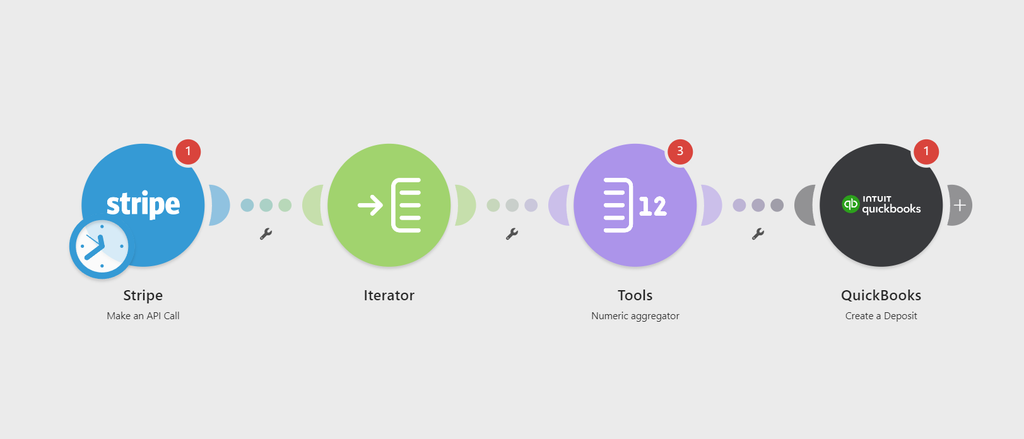
Here is the data pipeline we will build:
- Trigger: Stripe fires a
payout.paidwebhook event whenever funds are sent to your bank. - Data Fetching: Make queries the Stripe Balance Transactions API to extract every line item tied to that specific payout ID.
- Array Aggregation: Transactions are grouped into two clean buckets: Gross Sales and Processing Fees.
- Action: Make creates a matched Bank Deposit in QuickBooks Online, assigning gross receipts to Undeposited Funds and net merchant fees to an expense account called Stripe Processing Fees.
Prerequisites and Account Setup
Before configuring modules, ensure the following ledger accounts exist in QuickBooks Online:
- Stripe Clearing Account: A dummy Bank Account type in your Chart of Accounts.
- Stripe Processing Fees: An Expense account (Category: Bank & Merchant Fees).
- Operating Checking Account: Your primary bank account receiving Stripe deposits.
Step 1: Create the Stripe Webhook Trigger in Make
We use an instant webhook to prevent polling delays and unnecessary operation consumption.
- Log in to your Make workspace and click Create a new scenario.
- Add the Stripe module and select Watch Events (Instant).
- Click Add next to the Webhook field and connect your Stripe account using API Restricted Keys (ensure read access to Payouts and Balance Transactions is granted).
- Under Event Types, scroll down and select:
payout.paid. - Save the trigger module.
Step 2: Retrieve Balance Transactions for the Payout
The initial payout.paid payload contains the total amount transferred, but it does not list the granular customer transactions or Stripe fee deductions. We must pull the balance transactions list using the payout identifier.
- Add a second module: Stripe > Make an API Call.
- Set the URL to:
/v1/balance_transactions?payout={{1.data.object.id}}&limit=100 - Set the Method to
GET. - Click Run this module only with a recent payout ID to inspect the returned JSON structure.
The response returns an array of transaction objects containing gross amounts, fee amounts, and transaction types:
{
  "object": "list",
  "data": [
    {
      "id": "txn_1032x92eAA6e1008",
      "amount": 10000,
      "fee": 320,
      "net": 9680,
      "currency": "usd",
      "type": "charge"
    }
  ]
}
Step 3: Aggregate Fees and Gross Sales
To build a clean deposit in QuickBooks, we must separate the aggregate customer receipts from the operational fees.
- Add an Iterator module immediately following the Stripe API call module.
- Map the array
data[]from the API response into the Iterator. - Add a Numeric Aggregator module:
- Source Module: Iterator
- Aggregate Function: SUM
- Value:
Iterator.feedivided by 100 (Stripe returns currency in cents).
- Add a second Numeric Aggregator module to calculate the gross transaction amount:
- Aggregate Function: SUM
- Value:
Iterator.amountdivided by 100.
Step 4: Create the QuickBooks Online Deposit
Now we generate the journalized bank deposit record in QuickBooks so the bank feed matches seamlessly.
- Add the QuickBooks Online app and select the Create a Deposit module.
- In the Deposit To Account field, select your actual business checking account (the account receiving the Stripe direct deposit).
- Set the Date field to map:
{{1.data.object.arrival_date}}(formatted usingformatDate(arrival_date; YYYY-MM-DD)). - Under Deposit Lines, configure two line items:
Line Item 1 (Gross Inflow):
- Received From: Leave blank or set to Stripe.
- Account: Undeposited Funds (or your designated Stripe Clearing Account).
- Amount: Map the total from your Gross Sales Aggregator.
Line Item 2 (Processing Fee Outflow):
- Account: Stripe Processing Fees (Expense).
- Amount: Map the total from your Fee Aggregator multiplied by -1. (QuickBooks requires fee deductions on deposits to be negative numbers).
- Description: Auto-generated: Stripe processing fees for Payout ID
{{1.data.object.id}}.
Edge Cases and Troubleshooting
1. Handling Currency Discrepancies (FX Volatility)
If you sell internationally, Stripe converts foreign payments into your settlement currency at the time of the transaction, but minor floating currency fluctuations can occur before payout distribution. If your deposit is off by a few cents:
- Add a dedicated Chart of Accounts line named Foreign Exchange Gain / Loss.
- Create a conditional routing filter in Make: if
net_settlement - (gross_sales - fees) != 0, post the remainder to that FX variance account.
2. Stripe Payouts with Negative Balances (Chargebacks)
If refunds and customer chargebacks exceed total revenue during a rolling period, Stripe will debit your bank account instead of depositing funds.
- Add a Router module before the QuickBooks action.
- Route A (Standard): If
payout.amount > 0, execute the Create a Deposit action described above. - Route B (Debit Recovery): If
payout.amount < 0, execute a Create an Expense action in QuickBooks to track the account clawback without breaking the deposit workflow.
Summary of Completed Scenario
Once activated, your scenario executes silently in the background:
[Stripe Instant Webhook]
       │
[Get Balance Txns API]
       │
   [Iterator]
       │
[Aggregator: Fees & Gross]
       │
[QuickBooks: Create Deposit]
When you log into QuickBooks Online to review your weekly bank feed, the incoming Stripe bank batch will display a green Match button instead of requiring manual splits. Click match, and your accounts receivable, merchant expenses, and cash ledgers are fully aligned.